
Introducing Rename Speakers


If you publish interviews, co-hosted shows, or anything with more than one voice, you’re going to like the latest addition to Castos transcripts. You can now replace the generic “Speaker A” and “Speaker B” labels with real names, right inside the episode editor.
Introducing Rename Speakers
Every Castos transcript for a multi-speaker episode comes back with automatic speaker diarization. That’s the part that figures out who’s talking and splits the conversation into turns. The catch is that those turns get labeled Speaker A, Speaker B, Speaker C, and so on.
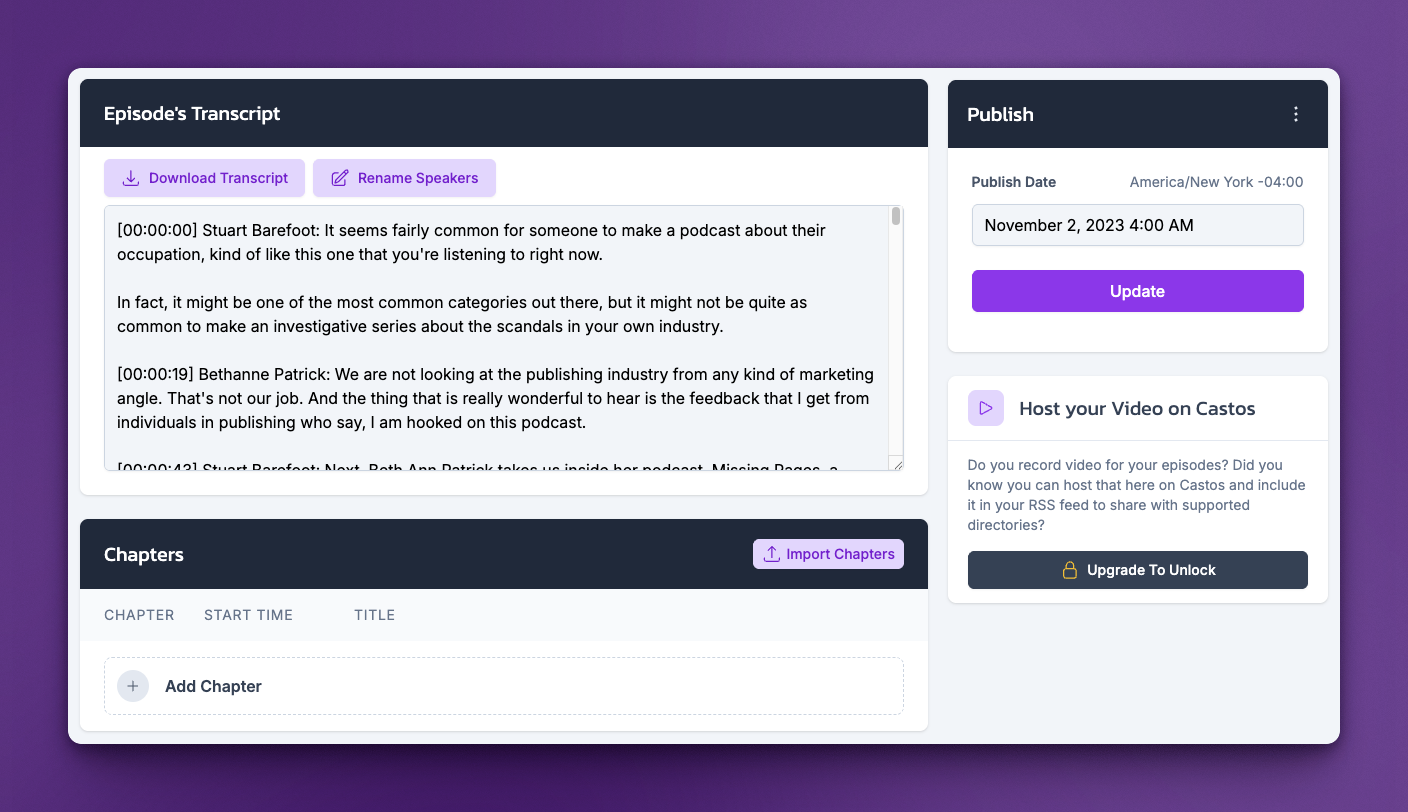
Rename Speakers lets you turn those labels into actual names. No exporting the file, editing it in another app, and re-uploading. You do it once, in the same place you manage the rest of your episode, and every line updates at once.
Why named speakers matter
“Speaker A: I think the real story here is…” makes a reader stop and work out who’s talking. A name doesn’t.
Real names make your transcript easier to read and easier to use everywhere it ends up. Search engines crawl the text of your transcript, so a transcript that names your host and your guest surfaces those names and the topics tied to them. Anyone using the transcript with a screen reader gets a clearer picture of the conversation. And when you pull quotes for show notes, social posts, or a newsletter, the attribution is already correct instead of something you fix by hand later.
How Rename Speakers works
Once your transcript has generated, it takes a few clicks:
- Click Edit on the episode to open the episode editor.
- Find the Episode’s Transcript section and click Rename Speakers.
- In the window that opens, type a name for each speaker. If you’ve already added that person as a Host on the podcast, pick them from the dropdown instead of typing.
- Click Replace Names, then Update to save.
That’s it. Speaker A and Speaker B now read as the people who were actually talking.
For the full walkthrough, see our documentation: Replace speaker names in Castos transcripts.
The Host dropdown is worth calling out. If you run a show with the same host every week, add them once as a Host on the podcast and they’ll be one click away on every episode you transcribe. No retyping, and the spelling stays consistent across your whole catalog.
A few things to know
A couple of things to keep in mind, since automatic diarization isn’t perfect:
- Sometimes the service detects multiple speakers for the same speaker. If this happens, just rename both speakers with the same name.
- The Rename Speakers button won’t show in the episode editor if the transcript doesn’t include multiple speakers. A solo episode won’t have it.
- If you bring your own transcript, the Rename Speakers button may not show unless your diarization format is
[00:00:05] Speaker A: Transcript text here.
Try it on your next episode
Rename Speakers is available now and included with transcription on every Castos plan. Open any multi-speaker episode in your dashboard, head to the transcript section, and give your speakers their names.
As always, we’d love to hear how you’re using it. If you have feedback or run into anything, let the team know.
Launch Your Podcast In Minutes
Castos makes launching simple with one-click setup, automatic distribution to all platforms, and professional hosting. No technical skills required.
Start your 14-day free trial