
Update every show note at once.
Add a header and footer once, and Castos applies them across your whole feed automatically. Swap a sponsor, refresh a CTA, or update a link, without touching a single past episode.
Castos is trusted by the top creators

Stop editing every episode by hand.
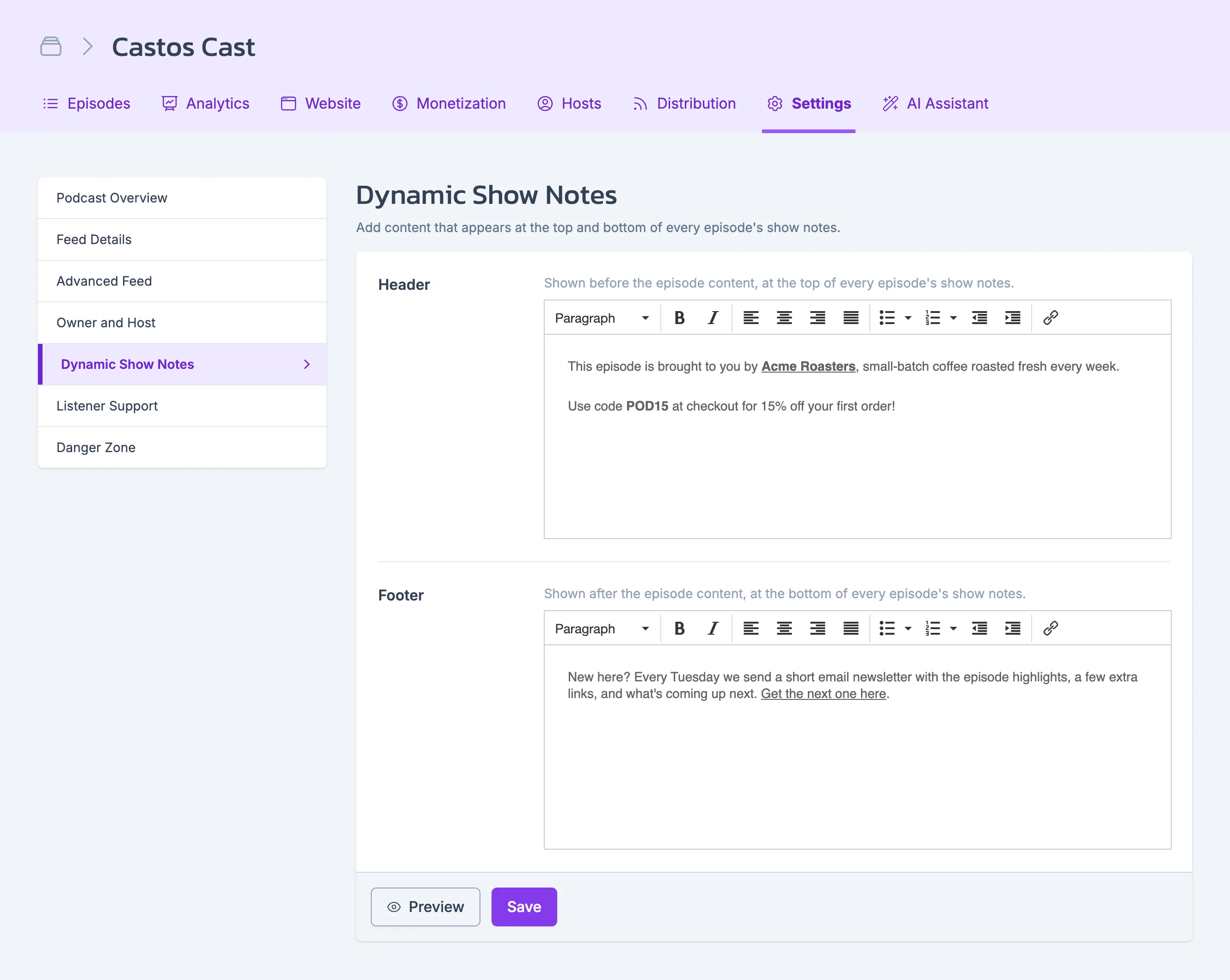
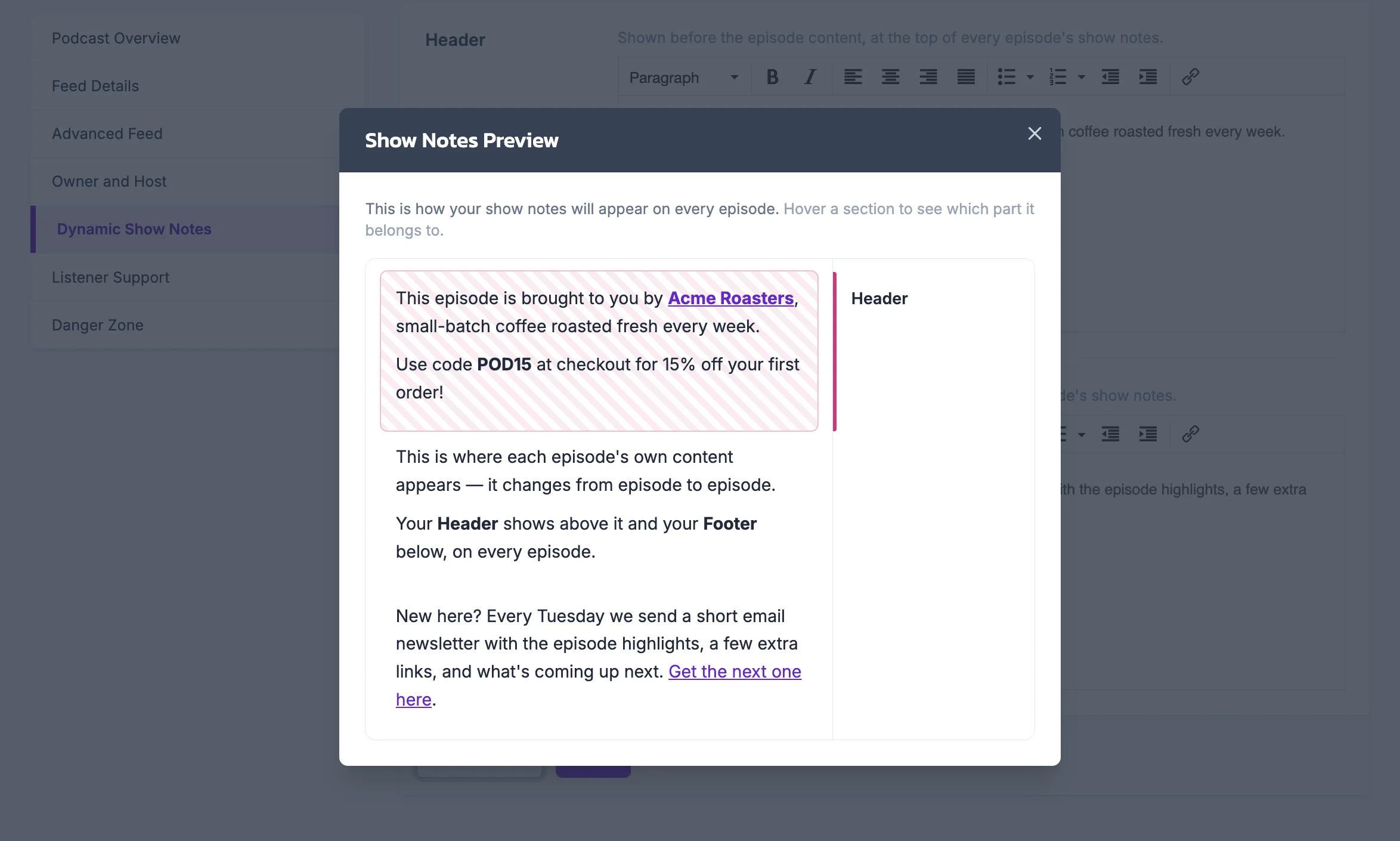
Set a header and footer once. Castos applies both across your entire feed automatically.
Applies to your whole catalog
Your header and footer show up on every episode automatically, including ones you published years ago.
Updates in about five minutes
Change the text and save. Castos pushes it to your RSS feed shortly after. No republishing required.
Header, footer, or both
Turn on just one or use both together. Clear a field and save to remove it.
A few ways to put it to work
Real examples of header and footer text creators run with.
Rotate sponsors without re-editing
Update a sponsor read or promo code once, and it's live across your whole feed. No episode-by-episode edits.
“This episode is brought to you by Acme Roasters, small-batch coffee roasted fresh every week. Use code POD15 at checkout for 15% off your first order.”
Keep your links current
Point every episode at your newsletter, latest social post, or current CTA, even the ones published months ago.
“New here? Every Tuesday we send a short email with the episode highlights, a few extra links, and what's coming up next. Get the next one at [link].”
Announce what's happening now
Add a note about an event, a schedule change, or a limited-time offer, then remove it when it's over.
“We're taking a two-week break to work on some upcoming episodes. New episodes resume March 3rd. The back catalog isn't going anywhere if you need something to listen to in the meantime.”
Cross-promote another show
Point listeners toward a sister show, a network feed, or a guest's podcast, and swap it whenever your lineup changes.
“If you liked this episode, check out our other show, [Show Name], where we cover [topic] in the same conversational format you're used to here.”
How Dynamic Show Notes works
Set it up once, from Settings, in under five minutes.
-
Open Dynamic Show Notes in Settings
Head to Settings → Dynamic Show Notes in your Castos dashboard.
-
Add your header and footer text
Write the text you want to appear before and after every episode's show notes. Use one, both, or neither. It's plain text, no images.
-
Preview, then save
Check how it'll look, then save. Your whole feed updates automatically. No need to touch a single episode.
Your show notes can do more work than you think
Set a header and footer once, and let Castos keep every episode current. No re-editing required.