Introducing Podcasting 2.0 Transcripts

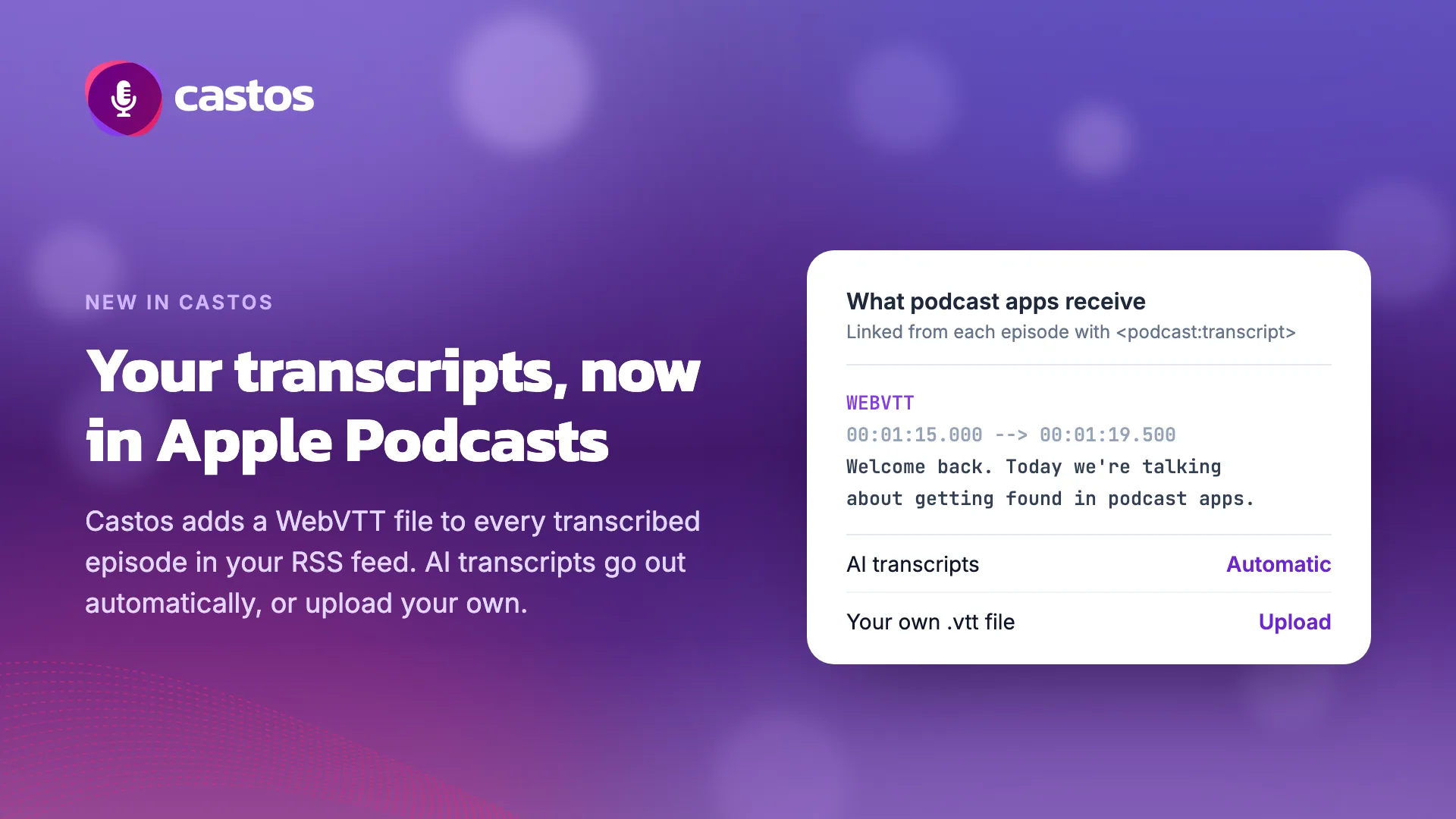
If you use AI transcripts in Castos, you’re all set. Your transcripts now go out to Apple Podcasts and other podcast apps through your RSS feed, for new episodes and ones you’ve already transcribed. There’s nothing to change.
If you don’t use AI transcripts, you can add a transcript to any episode yourself by uploading a .vtt file. It goes out through your feed the same way.
What’s new
Castos now adds a WebVTT (.vtt) transcript file to each transcribed episode in your RSS feed, using the Podcasting 2.0 <podcast:transcript> tag. Apps that read that tag, Apple Podcasts included, can pick up the file and show it alongside the episode.
With AI transcripts, Castos turns each finished transcript into a timed .vtt file and adds it to your feed for you.
With your own transcripts, upload a .vtt file in the episode editor (steps below). Castos stores it and links it from your feed. If the episode doesn’t have any transcript text yet, Castos also pulls the text out of the file, so it shows on your episode page, too.
Apps need timing information to follow along with the audio, so a transcript you typed or pasted into Castos, or one that came in with an imported episode, won’t go to apps on its own. To deliver one of those, upload it as a .vtt file.
Private podcasts and Hybrid Podcasting feeds are covered as well. Transcript files follow the same subscriber rules as your audio, so only people who can hear a private episode can read its transcript.
Why put transcripts in the feed
Until now, a Castos transcript lived on your episode page and your website. If your listeners mostly tune in from a podcast app, they may not have seen it yet. Now it’s right there in the app with them, which is where a transcript is most useful: following along when the audio is hard to hear, finding the spot where your guest named that book, listening with the sound off, or getting the episode at all if they’re deaf or hard of hearing.
WebVTT is a timed-text format. Every line of the transcript carries a timestamp, which lets an app highlight words as they’re spoken and jump to a moment when a listener taps a line.
And because the file lives in your RSS feed, you only add it once. Every app that supports the tag reads the same file, and you don’t have to upload anything to each directory separately.
How to upload your own transcript file
If you use AI transcripts, you can skip this part. You won’t see an Upload Transcript button on episodes with a finished AI transcript, or while Castos is still generating one, because Castos creates the transcript file for you.
For everyone else, here’s how to add your own file:
- Click Edit on the episode to open the episode editor.
- In the Episode’s Transcript section, click Upload Transcript and choose your
.vttfile. - Save the episode with Publish, Update, Schedule, or Save Draft.
Once it’s saved, the transcript section shows Transcript file attached. To replace it, click Remove, upload the new file, and save again.
A few details:
- Castos accepts WebVTT (
.vtt) files up to 2 MB. The file has to start withWEBVTTon the first line and contain at least one timed caption. Most editing and transcription tools, Descript included, can export it. - SRT and plain text files won’t upload. Convert them to
.vttfirst. - Apps get the file exactly as you uploaded it. Editing the text in the transcript box afterward won’t change what they receive, so fix mistakes in the file and upload it again.
The help doc, Delivering episode transcripts to Apple Podcasts and other apps, has the full walkthrough and troubleshooting.
Showing your transcripts in Apple Podcasts
Apple generates its own transcripts for your show, and the default setting, Only display auto-generated transcripts, means that’s all listeners see. To show yours instead:
- Sign in to Apple Podcasts Connect and open your show.
- Under Show, click Settings.
- In the Transcripts section, select Display auto-generated transcripts if I don’t provide any.
- Click Save.
Apple will use your transcript wherever your feed has one and fall back to its own for episodes that don’t. Apple’s guide to transcripts covers the rest.
Apple also has its own rules. Transcripts must meet its quality standards (correct spelling and punctuation, covering the whole episode), and they only display in the languages Apple supports. Castos marks each transcript with your podcast’s language, so check that it’s set in Feed Details. Your transcript appears once Apple refreshes your feed.
Other apps decide for themselves how and when to show transcripts, and some refresh feeds more often than others.
Try it on your next episode
If you already use AI transcripts, they’re in your feed now. If you haven’t turned them on, enable transcription for your podcast and every new episode gets a transcript and a transcript file. If you make transcripts in another tool, look for Upload Transcript next time you edit an episode.
As always, if you have feedback or run into anything, let the team know.
Launch Your Podcast In Minutes
Castos makes launching simple with one-click setup, automatic distribution to all platforms, and professional hosting. No technical skills required.
Start your 14-day free trial