
Meet the New Dynamo: Free Podcast Art in Every Size

Your podcast cover used to be the only image your show needed. Now there’s the YouTube thumbnail, the Instagram post, the Story, the preview that shows up when someone shares an episode link, and maybe a new piece of episode art every week. Each one is a different shape, so each one is another design to make.
Dynamo, our free image maker for podcasters, now makes all of them from one design. You make your cover, and Dynamo gives you the same design in every size you post, plus episode art and quote cards. It’s free, it runs in your browser, and there’s no account and no watermark.
We remade Dynamo from scratch for two reasons. Podcasters sent us a lot of feature requests, and we wanted it to live on castos.com instead of its own subdomain. Now that it does, we can keep adding to it.
Open Dynamo and follow along, or read on for what’s new and how it works.
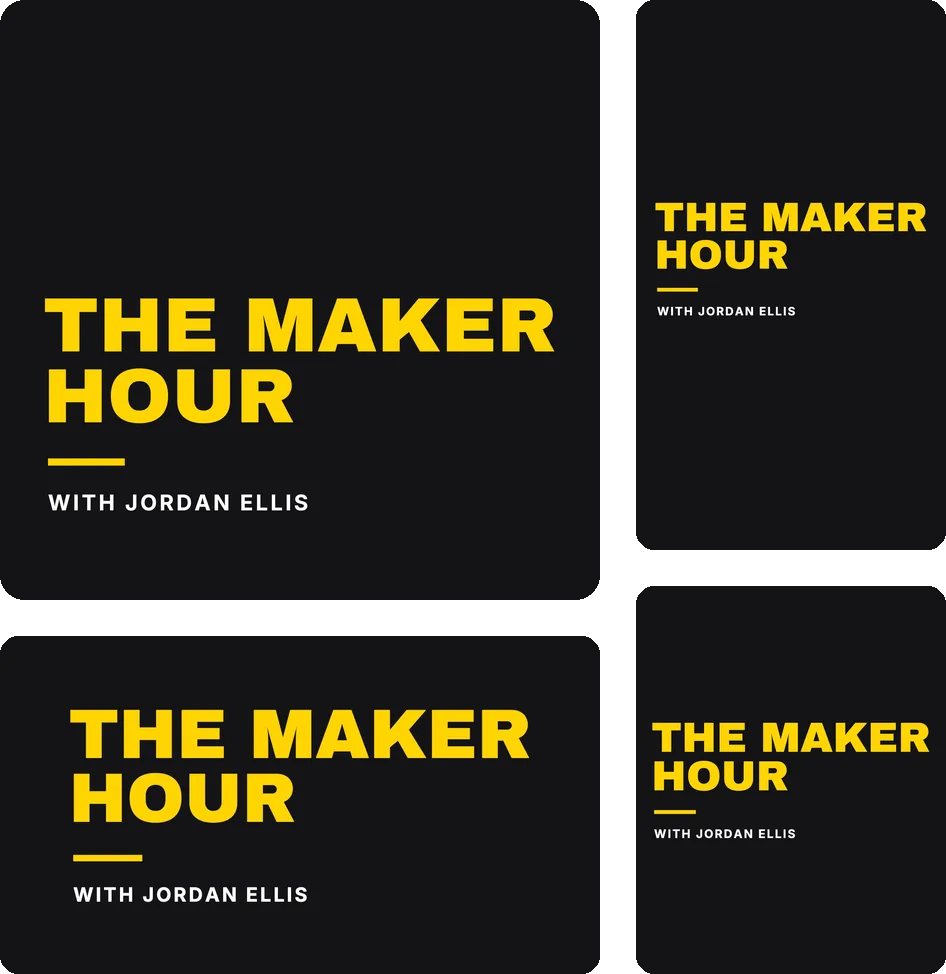
One design, every size
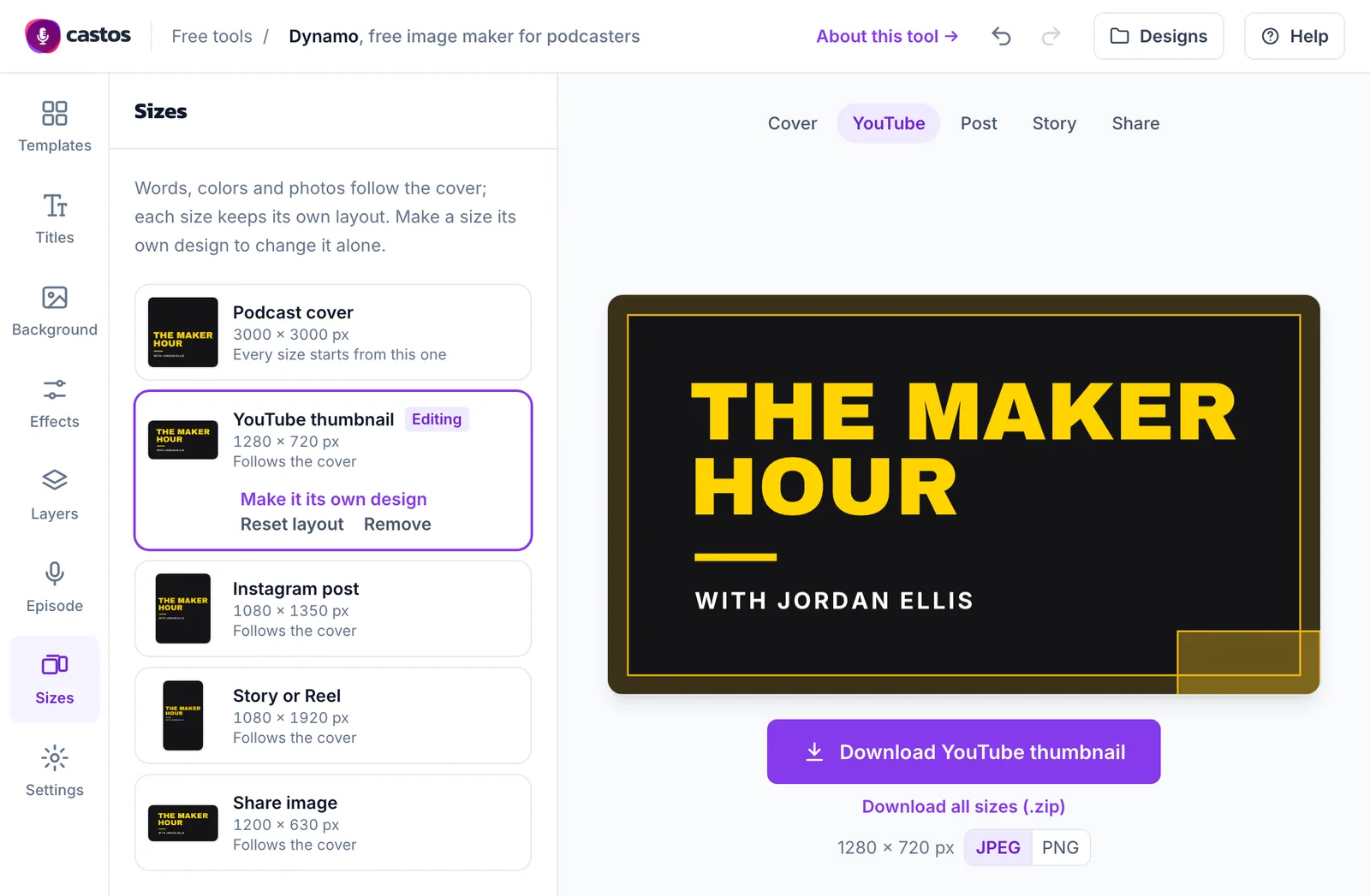
Start with your cover. Then open Sizes and add the others:
| Size | Pixels | Where it goes |
|---|---|---|
| Podcast cover | 3000 x 3000 | Apple Podcasts, Spotify, and other podcast apps |
| YouTube thumbnail | 1280 x 720 | Your video episodes and clips |
| Instagram post | 1080 x 1350 | The feed |
| Story or Reel | 1080 x 1920 | Instagram and Facebook Stories, Reels, and TikTok |
| Share image | 1200 x 630 | The preview when someone shares a link to your show |
Each new size starts from your cover, with the design fitted to the new shape: on a wide YouTube thumbnail, your title grows to use the width. From then on, your words, fonts, colors, and photos stay in sync across every size, while each size keeps its own layout. Change the title on the cover and the thumbnail changes with it. Move the title on the thumbnail and the cover stays put.
Turn on the safe zone in Settings to see the parts platforms cover, like the video length in the corner of a YouTube thumbnail or the top and bottom of a Story, so your title doesn’t end up under them.
When everything looks right, Download all sizes gives you one zip with every image, named after your show.
When one size needs to be different
Most changes are to one item. Anything you add while you’re editing a size other than the cover shows up only in that size, like a line about where to listen on your Story; Add to every size puts it in the others too. To shorten the title on the share image, select it there and choose Own words here: the words change in that size, and the fonts and colors still follow the cover. To keep an item off one size, choose Hide in Story (the button names the size you’re on). Show here brings it back.
For a size that needs a different design altogether, open Sizes and choose Make it its own design. That size keeps everything as it looks now. From then on, changes you make there stay there, and changes to the other sizes don’t reach it. Link to the cover makes it follow the cover again.
What’s new in Dynamo
If you used Dynamo before, the biggest change is one design in every size. The rest is a lot of small things that make podcast and episode art easier to get right:
- Templates. Eleven starter designs. The first nine follow patterns we saw on Apple’s top charts across 16 genres, from big stacked type to a host photo with a dark fade. Each one keeps your show’s name and restyles it, so you can try them all in a few clicks.
- Undo. Every change can be undone and redone, including switching templates.
- Snapping. Text, images, and shapes snap to the edges and center of the cover and to each other, with a guide line so you can see what lined up.
- Shapes. Add a rectangle, circle, or line behind your text or as a divider.
- Typing on the cover. Double-click any text to edit it where it sits.
- Photo crop. Zoom into a photo and drag it to choose the crop. With an Unsplash photo, Dynamo gives you the photographer’s credit to copy into your show notes.
- Saved designs. Dynamo keeps up to 10 designs in your browser, so you can come back to your show’s design next week.
Episode art and quote cards are new too; they have their own sections below. The old Quote Cards tool is now two of the templates.
How to make your podcast cover in Dynamo
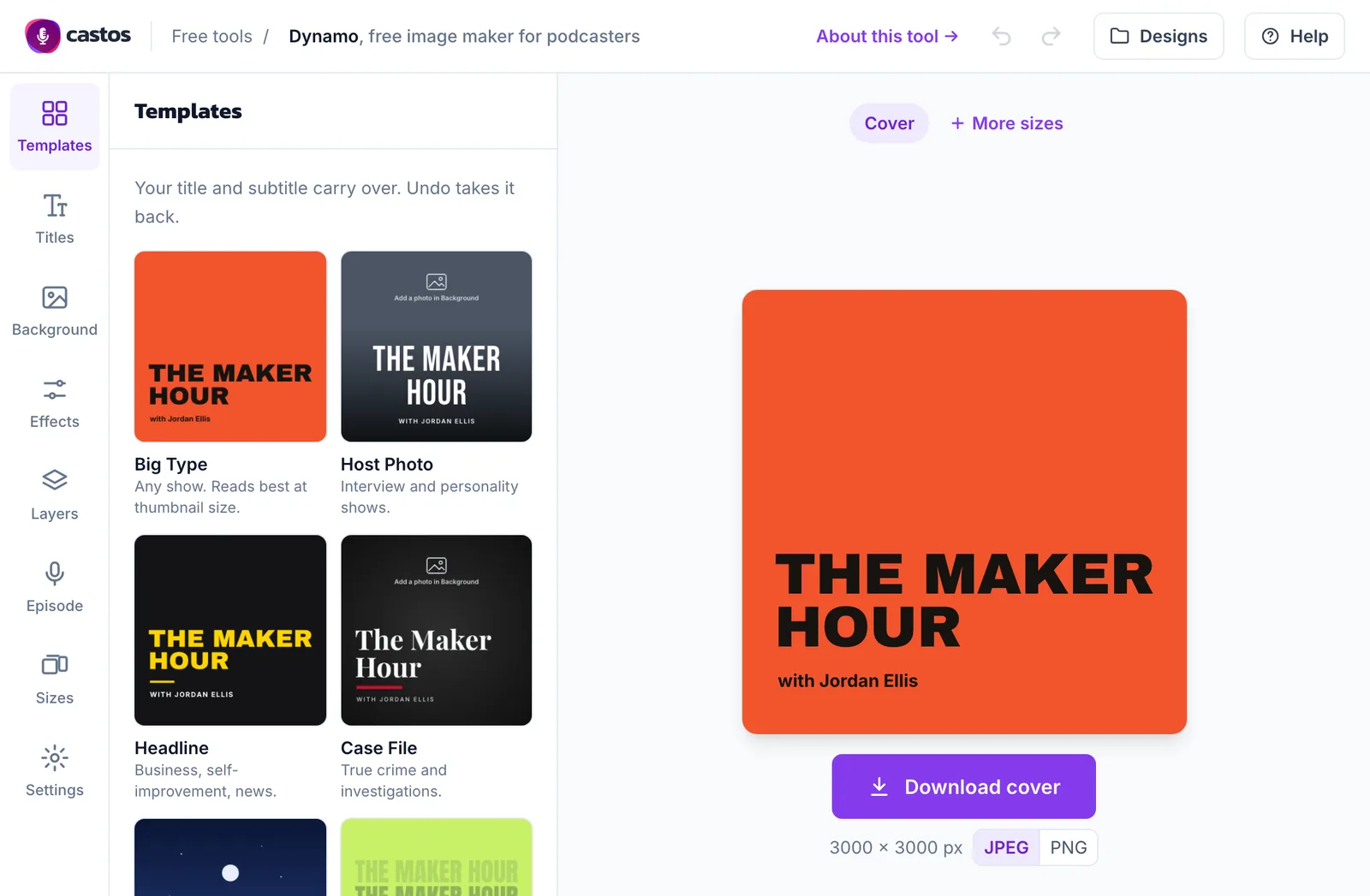
- Pick a template. Open Dynamo and type your show’s name. Every template redraws with it, so you see your own cover in each style before you choose.
- Set the background. In Background, choose a gradient or color, search for a photo, or upload your own. Effects has overlays and a tint, plus contrast, brightness, blur, and grayscale for the background.
- Adjust the words. Titles has 26 fonts, plus size, color, and shadow. Drag anything on the cover to move it, or pull its corners to resize it.
- Check it small. Most people see your cover as a small square in a list of shows. Keep the title big and the other words few. The thumbnails in Sizes show how your cover reads at that size.
- Download. Your cover downloads at 3000 x 3000, the largest size Apple Podcasts accepts. The JPEG stays under 1 MB; PNG is there if you’d rather have a lossless file.
For more on what makes a cover work, from fonts to contrast, see our guide to podcast cover art. For sizes, file limits, and the rest of the details, see how Dynamo works.
Episode art every week
Apple Podcasts can show a different image for each episode, and a consistent design makes your show easy to spot. In Dynamo, open Episode and add the fields you want: the episode number (written as “Episode 12”, “Ep. 12”, “#12”, or just “12”), the episode title, the guest’s name, and a round spot for their photo.
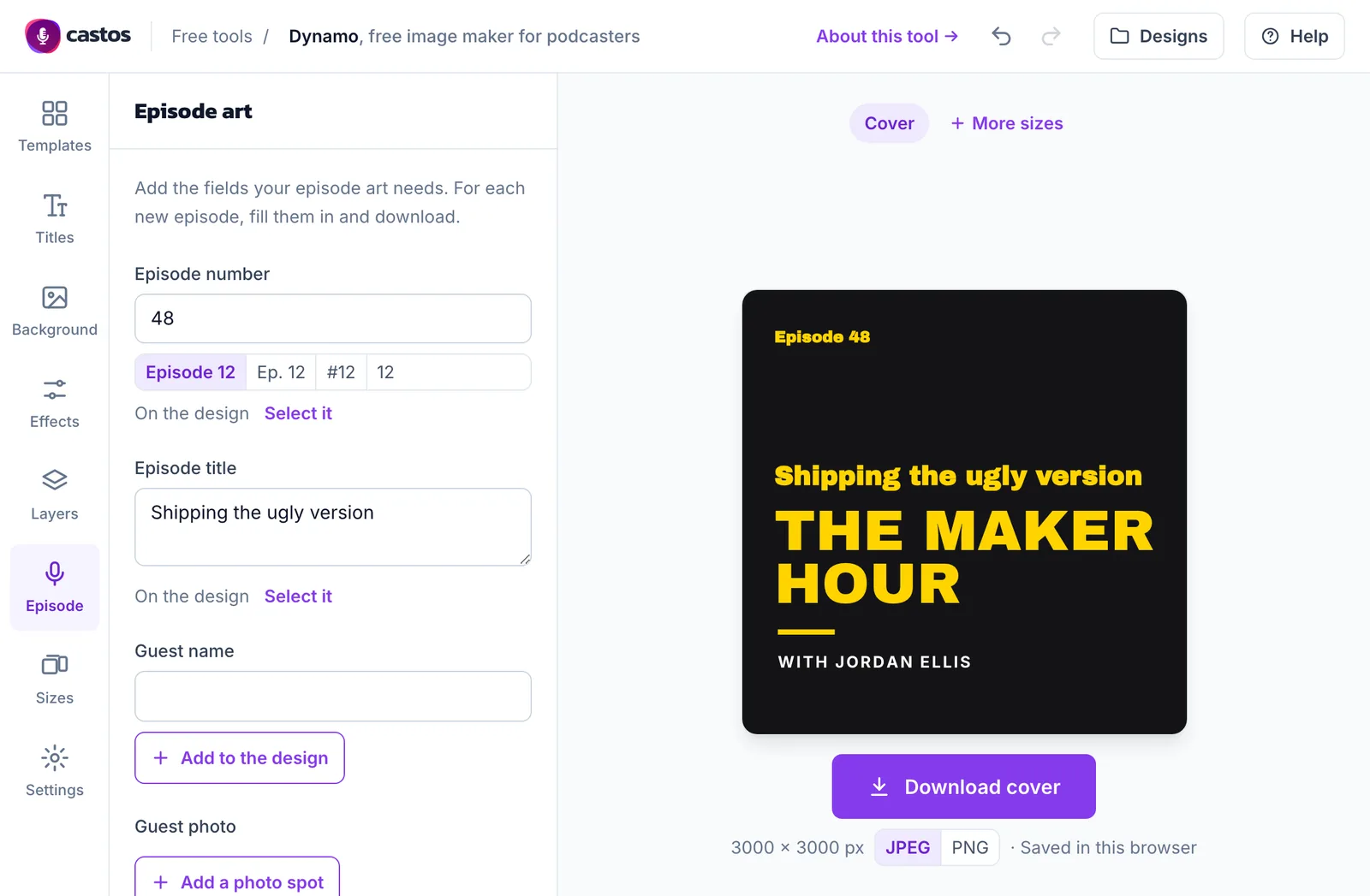
From then on, your show’s design is your episode art template. Each week, open it from Designs, type the new number and guest, and download. The fields show in every size, so the YouTube thumbnail and the Instagram post update with them, and the file names include the episode number.
Read more about episode artwork on Apple Podcasts.
Quote cards from your episodes
A good line from an episode makes an easy post between releases. Open Templates, choose Pull Quote or Sound Bite, then paste the quote and the speaker’s name in Layers. Long quotes shrink to fit.
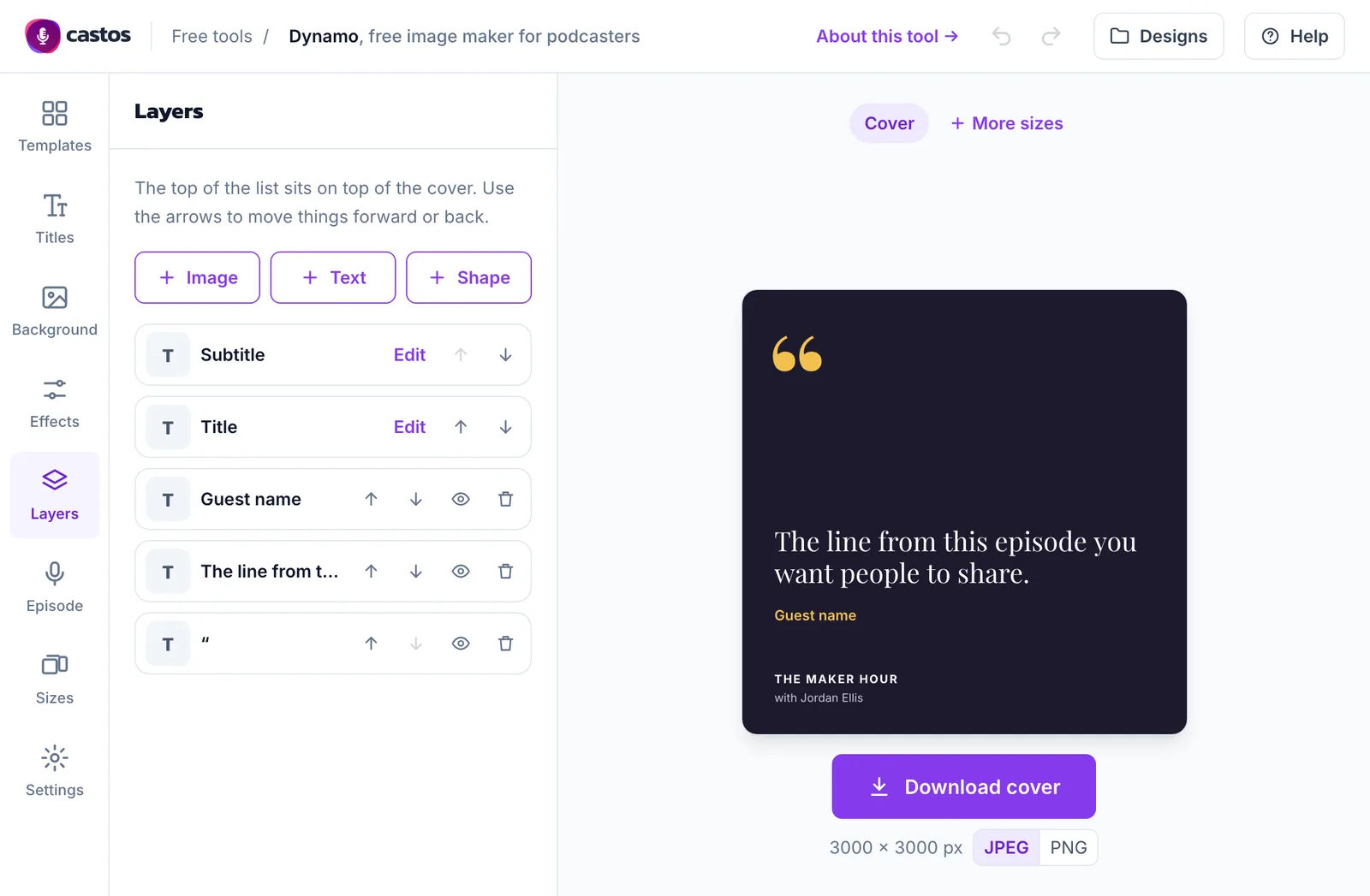
If your episodes are on Castos, your transcript is the quickest place to find the line. Find the moment you remember and copy the line straight over, with the speaker’s name already right if you’ve used Rename Speakers.
Launch Your Podcast In Minutes
Castos makes launching simple with one-click setup, automatic distribution to all platforms, and professional hosting. No technical skills required.
Start your 14-day free trial