
Free Transcript Converter
Turn a timestamped transcript into a VTT, SRT, Podcasting 2.0 JSON, or plain text file. Free, private, and entirely in your browser.
A Castos transcript, an SRT, or a VTT file. Nothing is uploaded.
Choose a format
WebVTT is what Apple Podcasts and the Podcasting 2.0 transcript tag expect, and what Castos accepts as an upload.
Trusted by 42,000+ podcasts, including shows from


How To Convert A Transcript
- Step 1
Paste Or Open Your Transcript
Copy a transcript from the episode editor in Castos and paste it in, or open an SRT or VTT file. The text stays in your browser.
- Step 2
Pick A Format
Choose VTT for podcast apps and your website, SRT for video and captions, JSON for Podcasting 2.0, or TXT for plain text. The preview updates as you switch.
- Step 3
Download The File
Add the episode title to name the file, download or copy it, then upload it wherever it needs to go, like the transcript field on a WordPress episode.
From A Castos Transcript To A File You Can Upload
Castos transcripts come as text, with a timestamp at the start of each line and a speaker name if there's more than one voice. That's easy to read and edit, but a lot of places only take a transcript as a file. Seriously Simple Transcripts, for example, adds a file field to each episode in WordPress. Paste the transcript here, download a VTT, and upload that.
End Times Filled In For You
A Castos transcript marks when each line starts, but VTT, SRT, and JSON also need to know when it ends. The converter ends each line where the next one starts. The last line has nothing after it, so its length is worked out from how many words it has. If your file already has end times, like an SRT or VTT, they're kept as they are.
Speaker Names Come Along
Speaker labels like Speaker A or the names you gave them in Castos carry over into every format: as voice tags in VTT, in front of each line in SRT and TXT, and in the speaker field of the JSON file. Your text is never reworded or recapitalized. What you paste is what you get, so fix any names or spelling before you convert.
Which Format Should You Use?
Use VTT unless something asks for a different one. It's the format Apple Podcasts and the Podcasting 2.0 transcript tag expect, and it's what Castos accepts as an upload. SRT is the older caption format that YouTube and most video editors take. The JSON option follows the Podcasting 2.0 transcript format. TXT drops the timestamps and gives you clean paragraphs for show notes or a blog post.
Want Transcripts Without The Copying? Use Castos
-
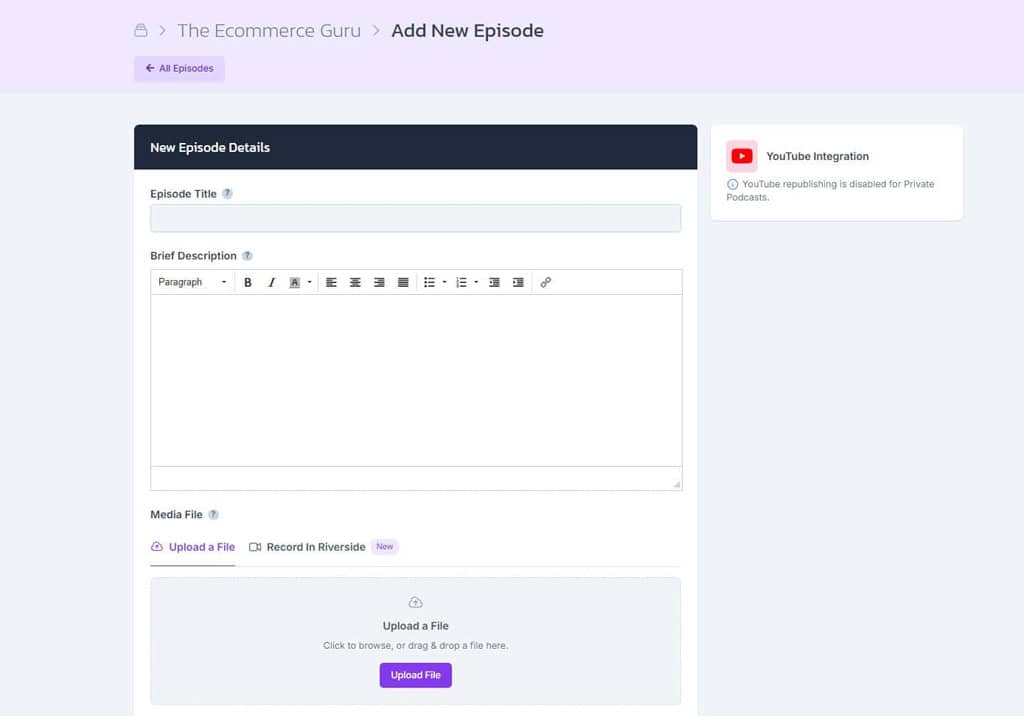
Transcribed On Publish
Every episode you publish on Castos is transcribed automatically, with each speaker labeled.
-
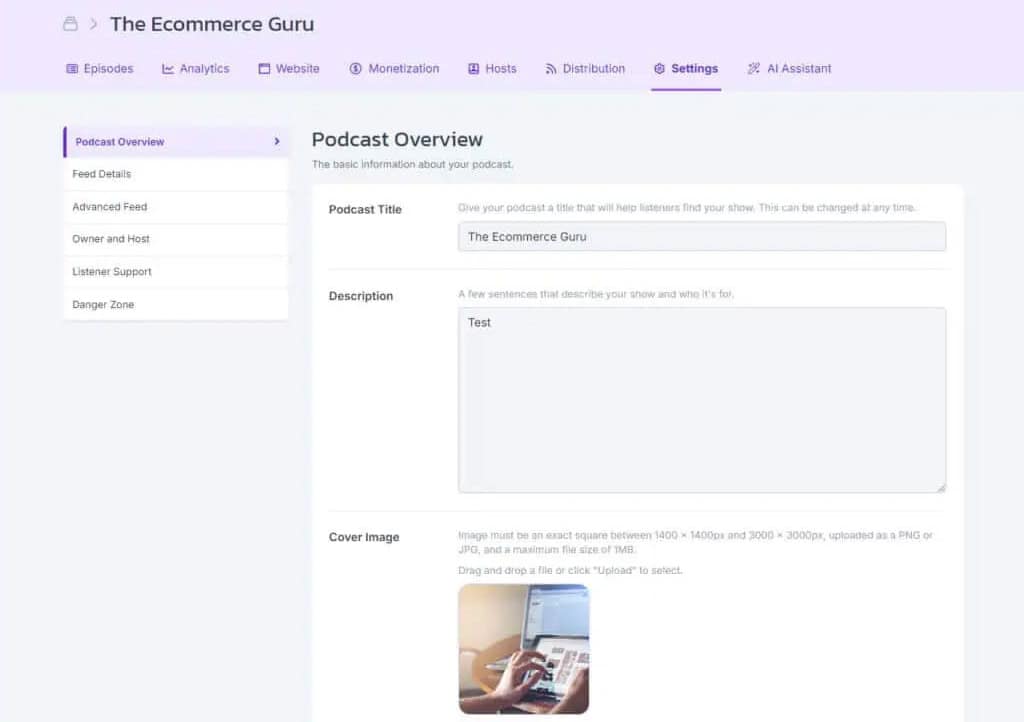
Sent To Podcast Apps
Castos adds a VTT file to your RSS feed for each transcribed episode, so apps like Apple Podcasts can show it to listeners.
-
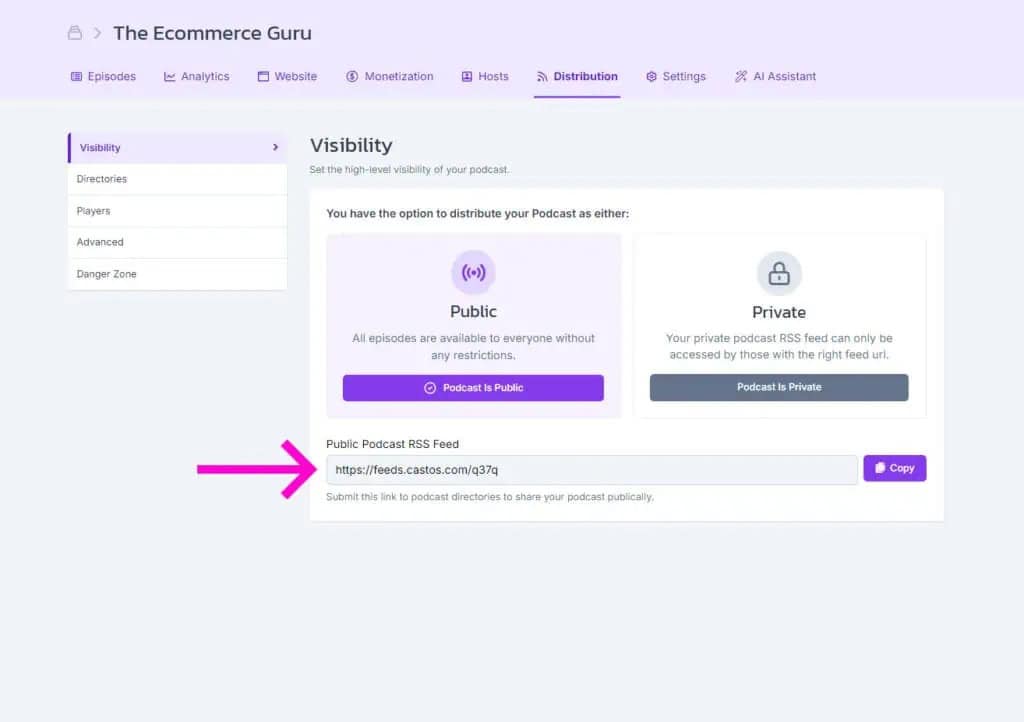
On Your Episode Pages
Transcripts show on your Castos podcast website too, where search engines can read every word.
Frequently Asked Questions
How do I convert a transcript to VTT?
What transcript formats can I paste in?
How do I add a Castos transcript to my WordPress site?
Where do the end times come from?
Will the converter fix capitalization or typos?
Is my transcript uploaded or stored anywhere?
Related tools
Record and edit audio
Files never leave your browser.
- Voice Recorder Record, pause, and export a podcast-ready MP3.
- Audio Trimmer Cut the start and end of a recording on a waveform.
- Audio Joiner Combine intro, episode, and outro files into one MP3.
- Audio Converter Turn WAV, M4A, FLAC, and other files into a podcast-ready MP3.
- Audio Speed Changer Speed up or slow down audio without changing the pitch.
- Extract Audio From Video Turn an MP4, MOV, WebM, or MKV video into an MP3 or WAV.
Check your RSS feed
Plan and record
- Podcast Name Generator Get show name ideas with domain availability checks.
- Podcast Episode Planner Plan an episode, then get the guest email, a run sheet, and show notes.
- Microphone Test See your levels, hear how you sound, and check your room for noise.
- Podcast Teleprompter Read your script hands-free while you record on camera.
Design with Dynamo
Get Every Episode Transcribed With Castos
Castos transcribes each episode you publish, labels the speakers, and sends the transcript to podcast apps for you.