
Trim Audio Online
Cut the beginning and end of an audio file with waveform precision. Free, private, and entirely in your browser.
Your audio stays on your device. Nothing is uploaded or stored.
Select the audio to keep
Move either handle or enter an exact time.
MP3 at 128 kbps
Your file will be exported as an MP3 at 128 kbps, the standard bitrate for podcasting.
Preparing the audio trimmer
The first run loads the trimmer into your browser. It may take a moment.
0% complete
Your trimmed audio is ready
Want more free tools like this?
Get our best podcasting tips, new free tools first, and a discount code for Castos. Unsubscribe anytime.
You're in
Check your inbox for a discount code and our best podcasting tips.
We couldn't trim the audio
Trusted by 42,000+ podcasts, including shows from


How To Trim An Audio File
- Step 1
Choose Your Audio
Select an MP3, WAV, M4A, AAC, OGG, or FLAC file from your device. The recording stays in your browser and is never uploaded.
- Step 2
Select What To Keep
Move the start and end handles around one continuous section. Preview the selection or use Find Silent Edges to remove quiet audio at either end.
- Step 3
Trim And Download
Click Trim Audio and download a podcast-ready MP3. The export is fixed at 128 kbps for clear spoken audio and a practical file size.
Cut The Beginning And End With Precision
Recordings often start with setup chatter, a few seconds of room tone, or an awkward pause. They may also continue after the conversation is over. The waveform gives you a visual map of the file so you can place each cut precisely, preview the result, and keep only the continuous section you need.
Silent Edges, Not Missing Pauses
Find Silent Edges looks only for quiet audio at the beginning and end of the recording. It does not delete pauses inside the episode. Those pauses may be part of the speaker's timing, so removing them automatically could change the conversation in ways you did not intend.
Podcast-Ready MP3 At 128 kbps
Every trimmed file is exported as an MP3 at 128 kbps. This is a standard podcast setting that keeps voices clear while controlling file size. There is no format menu to configure and no extra setting to second-guess.
Audio Ready? Publish Your Podcast In 3 Steps
-
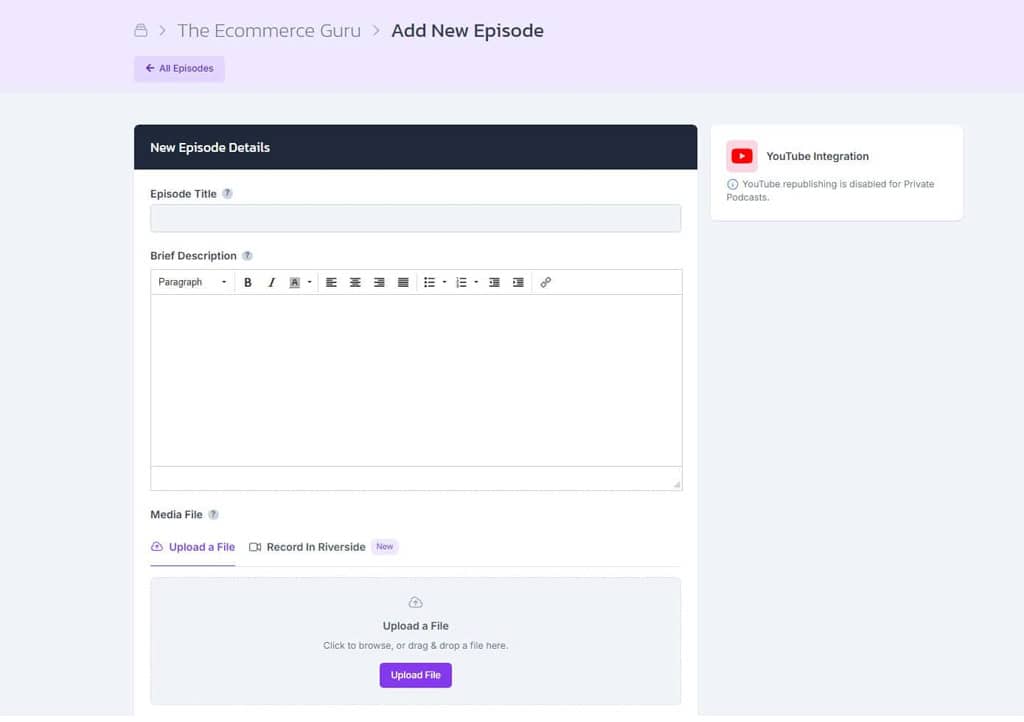
Upload The MP3
Create a show in Castos and upload the trimmed MP3 with your episode title, description, and artwork.
-
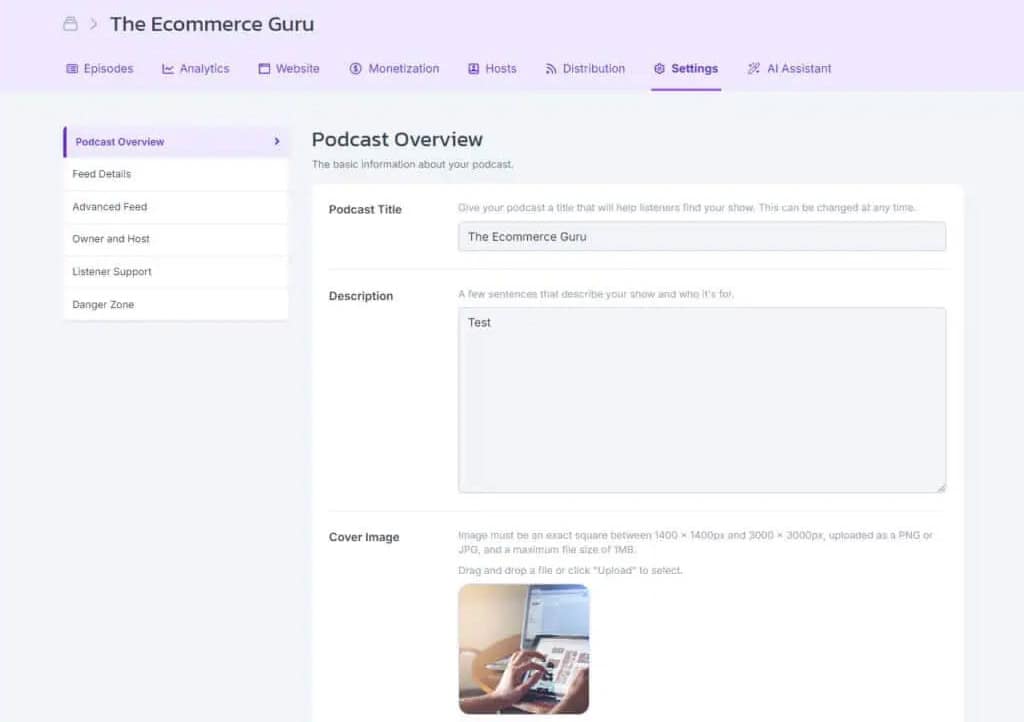
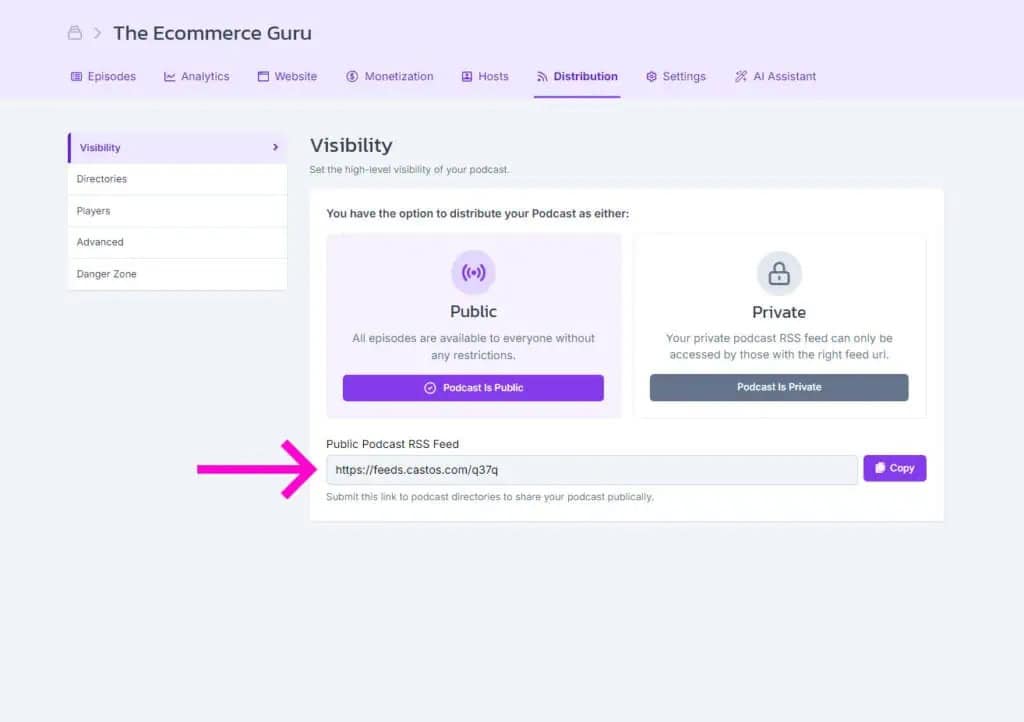
Get Your Feed And Website
Castos creates the RSS feed podcast apps need and a customizable site where listeners can find every episode.
-
Publish Everywhere
Submit your feed to Apple Podcasts, Spotify, and other directories once. Future episodes are distributed automatically.
Frequently Asked Questions
How do I trim an audio file online?
Does the audio trimmer remove every silent gap?
What format and bitrate does the trimmer export?
Is my audio uploaded or stored anywhere?
Which audio formats can I trim?
Publish Your Trimmed Audio With Castos
Upload your MP3, create your podcast feed, and distribute every episode from one place.