Record Your Voice Online
Record, pause, and export a podcast-ready MP3. Free, private, and entirely in your browser.
We found an unfinished recording
Click below and allow microphone access when your browser asks.
Recording happens entirely in your browser. Nothing is uploaded until you choose to download it.
Not sure how you sound? Test your mic first →
We can't access your microphone
- Check the microphone icon in your browser's address bar and choose Allow.
- Make sure another app isn't using the microphone.
- On macOS: System Settings → Privacy & Security → Microphone, enable your browser.
- On Windows: Settings → Privacy → Microphone, allow apps to access it.
Clean up your audio (optional)
Preparing the exporter
The first run loads the exporter into your browser. It may take a moment.
0% complete
Your recording is ready
Want more free tools like this?
Get our best podcasting tips, new free tools first, and a discount code for Castos. Unsubscribe anytime.
You're in
Check your inbox for a discount code and our best podcasting tips.
Need to cut dead air or trim the ends? Use the Audio Trimmer →
We couldn't export the recording
Trusted by 42,000+ podcasts, including shows from


How To Record Your Voice Online
- Step 1
Allow Microphone Access
Click Start Recording and allow microphone access when your browser asks. Pick a different microphone from the dropdown if you have more than one connected.
- Step 2
Record, Pause, Or Resume
Watch the level meter and elapsed timer while you record. Pause anytime without ending the take, then resume right where you left off.
- Step 3
Export And Download Your MP3
Click Stop & Export MP3 and download a podcast-ready file. Turn on noise reduction, silence trimming, or loudness normalization first if you want a quick cleanup pass.
A Quick Way To Capture Your Voice
A voice memo for a script idea, a quick backup of a guest's side of a call, or a first take of an intro you want to hear back before you commit to it. Not every recording needs a full editing setup. This tool captures your voice and exports it as an MP3 without installing anything or creating an account.
Nothing Leaves Your Device
Recording and exporting both happen in your browser. Your microphone audio is never sent to a server while you record, and the MP3 export runs locally too. Close the tab and the working files disappear.
Podcast-Ready MP3 At 128 kbps
Every recording is exported as an MP3 at 128 kbps, a standard podcast bitrate that keeps spoken audio clear at a practical file size. There is no format menu to configure and no extra setting to second-guess before you upload it to a host.
A Quick Cleanup Pass, If You Want One
Three optional checkboxes sit above the export button: reduce background noise, trim silence from the start and end, and normalize loudness toward the -16 LUFS most podcast platforms target. All three run in the browser as part of the same export, so turning them on doesn't cost you a second pass or a different tool.
Recording Ready? Publish Your Podcast In 3 Steps
-
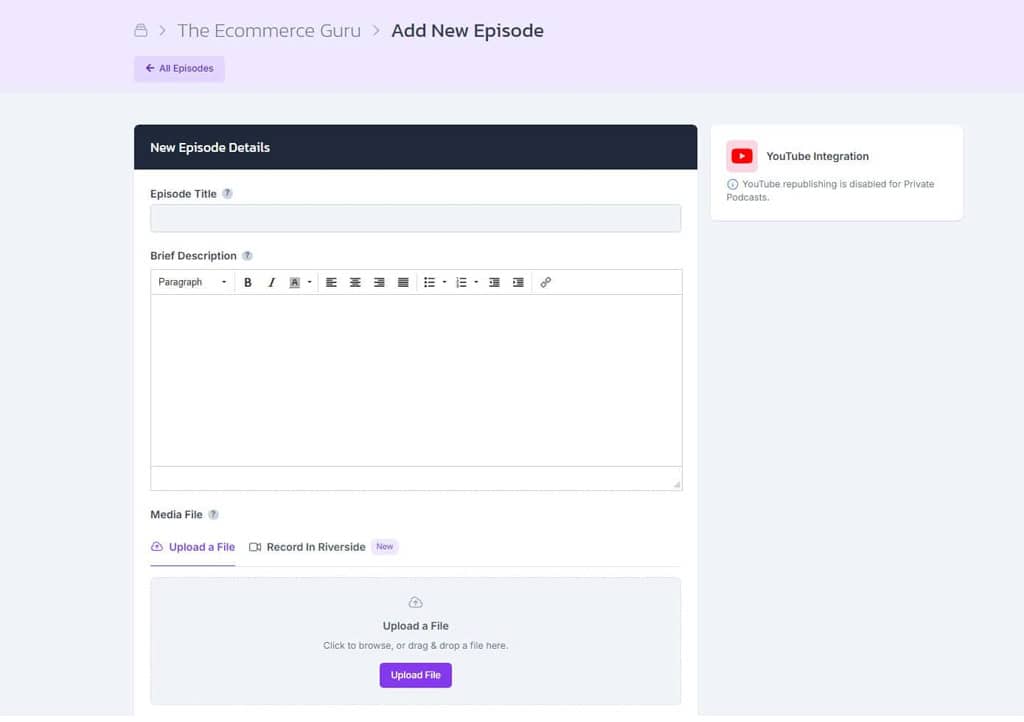
Upload The MP3
Create a show in Castos and upload your recorded MP3 with your episode title, description, and artwork.
-
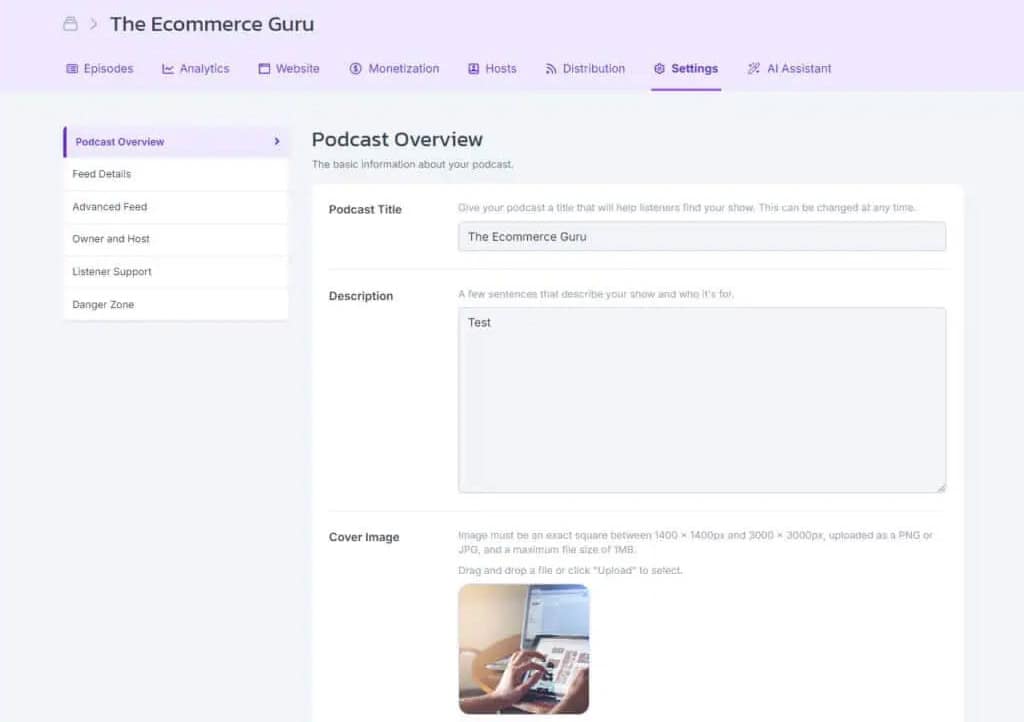
Get Your Feed And Website
Castos creates the RSS feed podcast apps need and a customizable site where listeners can find every episode.
-
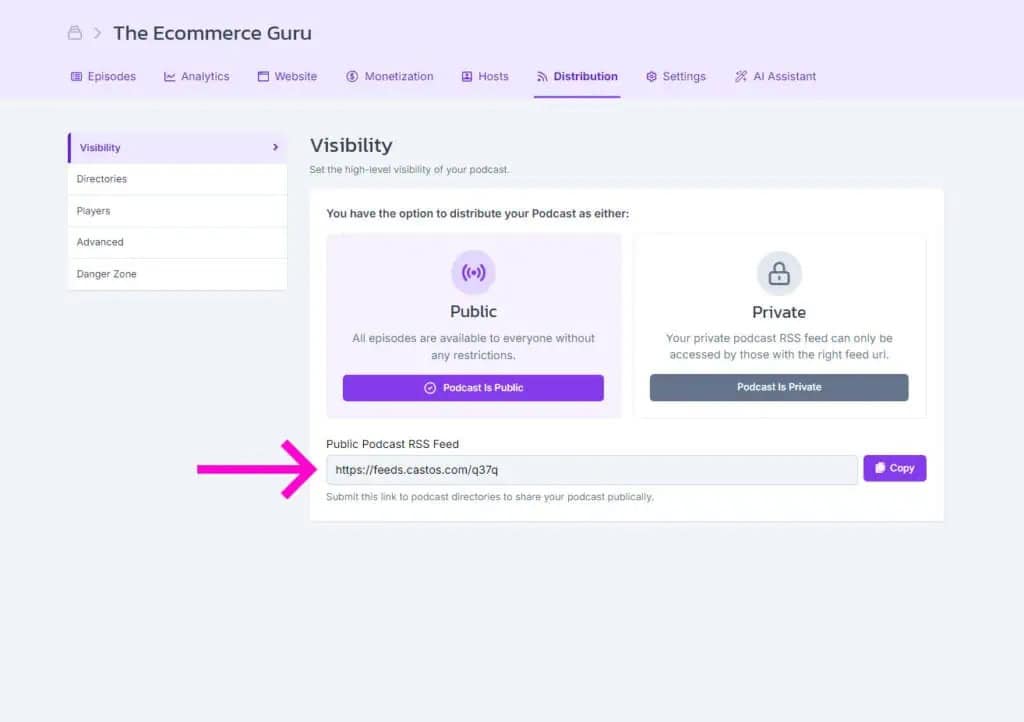
Publish Everywhere
Submit your feed to Apple Podcasts, Spotify, and other directories once. Future episodes are distributed automatically.
Frequently Asked Questions
How do I record my voice online?
Is this voice recorder free?
Is my recording uploaded anywhere?
Can I pause and resume a recording?
Why is the export always an MP3 at 128 kbps?
Which browsers and microphones does this work with?
Can I clean up background noise or trim silence automatically?
What happens if my browser crashes while I'm recording?
Related tools
Record and edit audio
Files never leave your browser.
- Audio Trimmer Cut the start and end of a recording on a waveform.
- Audio Joiner Combine intro, episode, and outro files into one MP3.
- Audio Converter Turn WAV, M4A, FLAC, and other files into a podcast-ready MP3.
- Audio Speed Changer Speed up or slow down audio without changing the pitch.
- Extract Audio From Video Turn an MP4, MOV, WebM, or MKV video into an MP3 or WAV.
Check your RSS feed
Plan and record
- Podcast Name Generator Get show name ideas with domain availability checks.
- Podcast Episode Planner Plan an episode, then get the guest email, a run sheet, and show notes.
- Microphone Test See your levels, hear how you sound, and check your room for noise.
- Podcast Teleprompter Read your script hands-free while you record on camera.
Design with Dynamo
Publish Your Recording With Castos
Upload your MP3, create your podcast feed, and distribute every episode from one place.