How to Start a Podcast on Spotify (2026): Both Ways, Compared

There are two ways to get a podcast onto Spotify, and most guides cover only one of them. You can let Spotify host your show for free, or you can host it elsewhere and give Spotify your RSS feed. This guide covers both routes and is honest about which one you are likely to regret.
The short version: if you ever want your show anywhere other than Spotify, host it elsewhere and submit the feed. Spotify’s free hosting is genuinely good, and it quietly makes Spotify the owner of your distribution. That is a reasonable trade for a hobby show and a poor one for anything you intend to grow.
Updated July 2026: merged with our separate submit guide so both routes live in one place, updated Spotify for Podcasters to its current name Spotify for Creators, and added a comparison of the two approaches.
The two routes, compared
| Host on Spotify | Host elsewhere, submit your feed | |
|---|---|---|
| Cost | Free | Roughly $15 to $50/month |
| On Apple Podcasts and other apps | Only if you submit the feed separately | Yes, automatically |
| You own the RSS feed | No | Yes |
| Analytics | Spotify listeners only | Every app your show appears in |
| Moving later | Painful | Change one setting |
| Monetization, transcripts, private feeds | Limited | Depends on your host |
The row that matters is who owns the feed. Everything else follows from it. If Spotify hosts your show, Spotify decides where it can go, and moving later means asking your listeners to resubscribe.
Spotify is a popular hosting platform for podcasters these days due to their heavy investment in the podcasting space and free hosting plans.
While many podcasters enjoy the no-cost hosting of their show, free tools often lack the important features and services that paid tools offer. For example, Spotify lacks many monetization tools, transcription services, YouTube republishing, and private podcasting.
Furthermore, Spotify’s analytics only apply to the Spotify platform, whereas a typical podcast host like Castos can offer analytics of every listening app where your show appears.
But if Spotify is right for you, this guide will teach you the necessary steps to start a podcast on Spotify, including the platform’s specific requirements.
(If you’re looking to learn how to submit your show to Spotify without hosting it on the platform, skip to submitting an existing show to Spotify below.)
Publish Your Episodes to YouTube Automatically
If you want a big audience, your podcast needs to be available everywhere. Reach your audience on the largest search engine and #1 podcasting platform on the internet, YouTube. Even though it isn’t a music platform, more people listen to audio content on YouTube than anywhere else.
How does YouTube Republishing work?
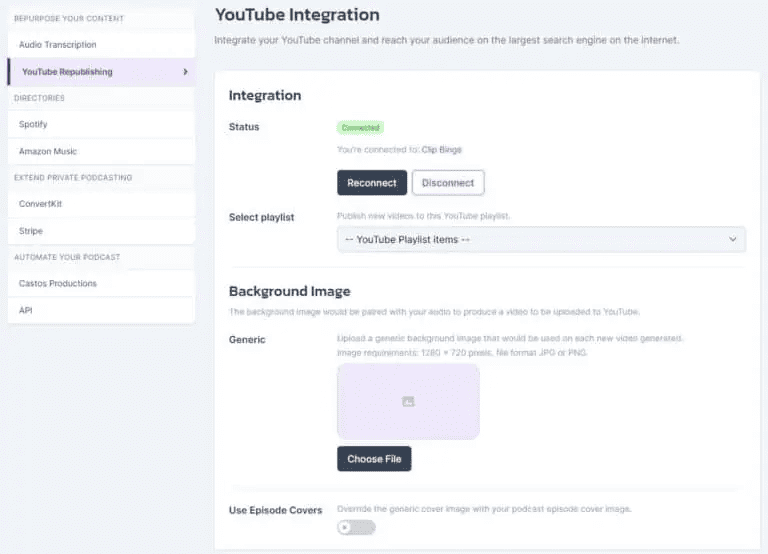
YouTube Republishing is available in your Castos dashboard. Castos will convert your podcast audio files to beautiful-looking videos using an image as the visual component. You can set whatever image you like, such as your cover art. The same image is used for each video.
After the basic setup, Castos will automatically publish your videos to the YouTube channel and/or playlist of your choice. Set it once and forget about it.
Why publish your podcast episodes on YouTube?
- Bigger Reach – Share your content with a wider audience.
- Zero Resources – Automatic republishing happens when you publish.
- Enhanced SEO – Amp up your SEO results publishing on YouTube.
- Available Free – Included FREE with all Growth & Pro accounts.
How do you set up YouTube Republishing?
All you need to do is create a one-time connection between your Castos account and the YouTube channel of your choice. After that, anytime a podcast episode is published, it will be automatically converted to a video file with your thumbnail image as the background, and published to YouTube for you.
What’s the cost of YouTube Republishing?
YouTube republishing comes standard on all Growth and Pro plans. You can upgrade your subscription settings right inside your Castos dashboard in the My Account -> Republishing tab.
Zero setup. Turn on and off any time.
7 Steps to Create a Podcast on Spotify
Let’s walk through the process to start a podcast on Spotify.
1. Verify Your Podcast Meets Spotify’s Requirements
The first step in our guide on how to start a podcast on Spotify is to make sure your show meets Spotify’s requirements. Use our checklist below to double check your podcast’s settings:
- MP3 must be in ISO/IEC 11172-3 MPEG-1 Part 3 (MP3) audio with bitrates between 96 and 320 kbps.
- Cover art must be a square ratio (1:1) and be in a PNG, JPEG, or TIFF formats at the highest resolution possible
- The RSS feed must have a title, cover art image, and relevant details for at least 1 episode
- Episode titles and other consumer-facing fields shouldn’t exceed 20 characters to avoid ’…’ truncation within Spotify’s platform
- Special characters must be HTML coded within podcast titles and descriptions. For example, “News & Politics” should be written as “News & Politics”. (A note: Spotify doesn’t allow for other HTML tags like
. These tags will be removed for your descriptions before publication.) - Episode length can’t exceed 200MB. (200MB is about 83 minutes at 320Kbps or over 200 minutes at 128Kbps.)
2. Create a Spotify Account
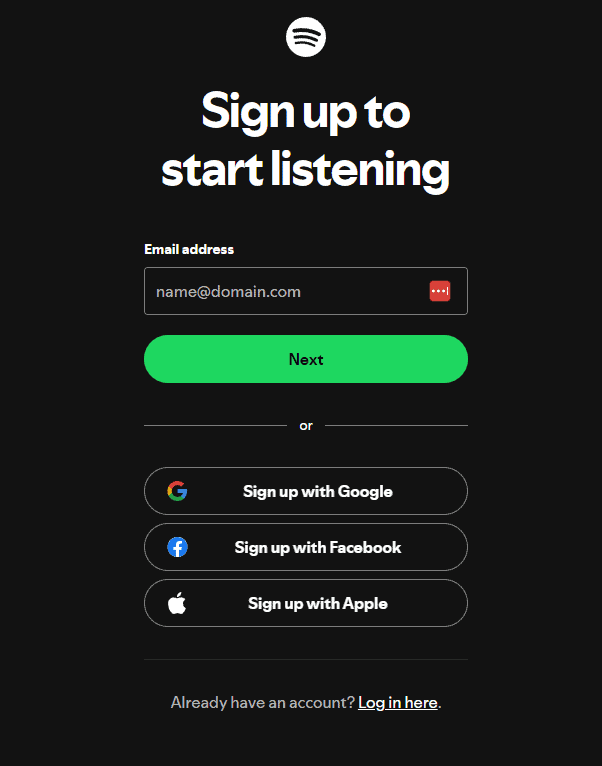
Your next step to upload a podcast on Spotify is to visit Spotify for Creators and log into your account. Then click the “Get Started” button.
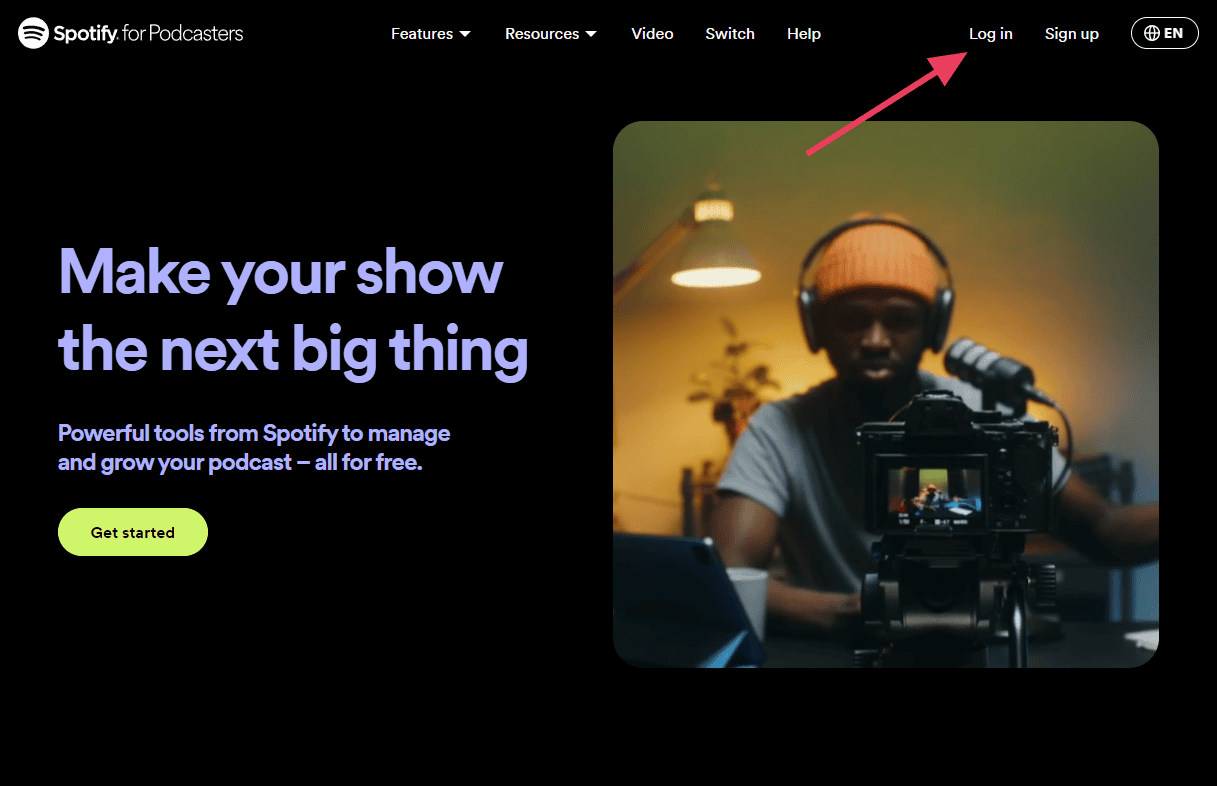
If you don’t have an account already, you’ll need to create one before you can move forward with the Spotify podcast submission process.
3. Agree to the Terms & Conditions
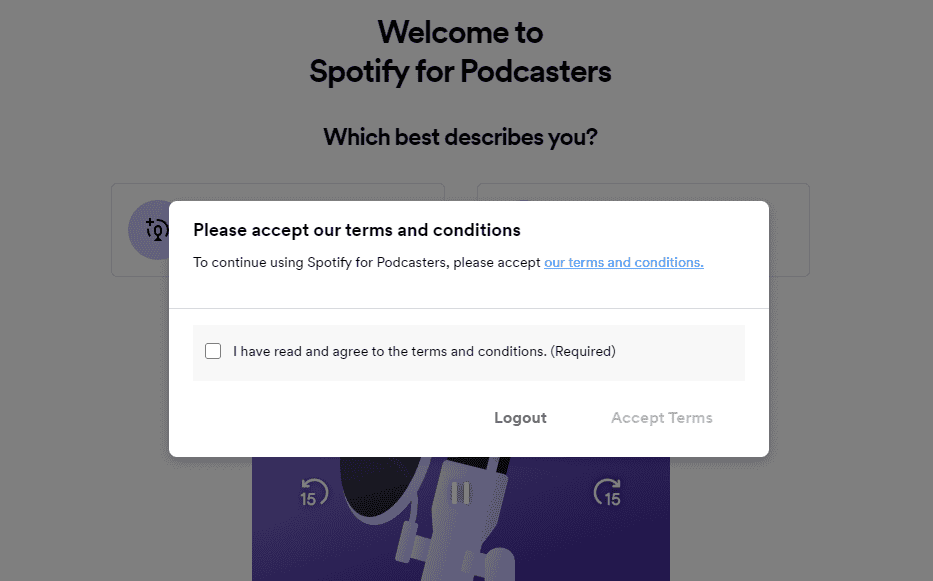
The next screen will ask you to agree to Spotify’s Terms & Conditions page. Read it if you like, check the box, and click “Accept Terms.”
4. Describe Your Show
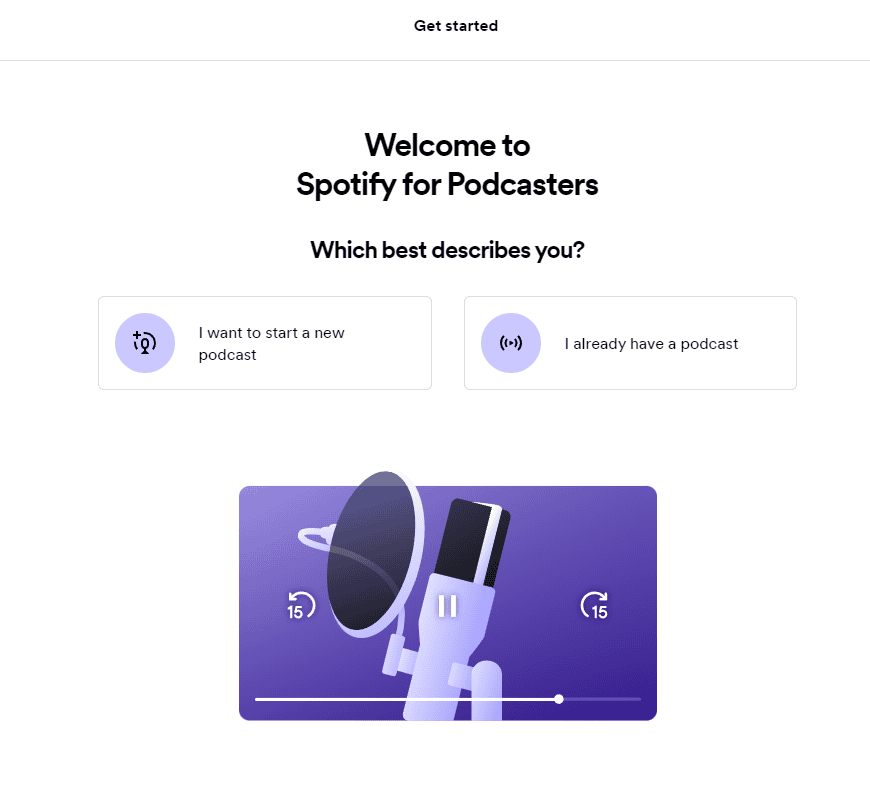
Next, Spotify needs to know if you’re starting a new show or if you already have one. Click the “I already have a podcast” button.
5. Add Your First Episode
Once you’re into the dashboard, your first step to start a podcast on Spotify is to upload your first episode. Don’t worry, you’ll have a chance to edit your show’s details in a moment. Click the “Let’s do it” button to get started.
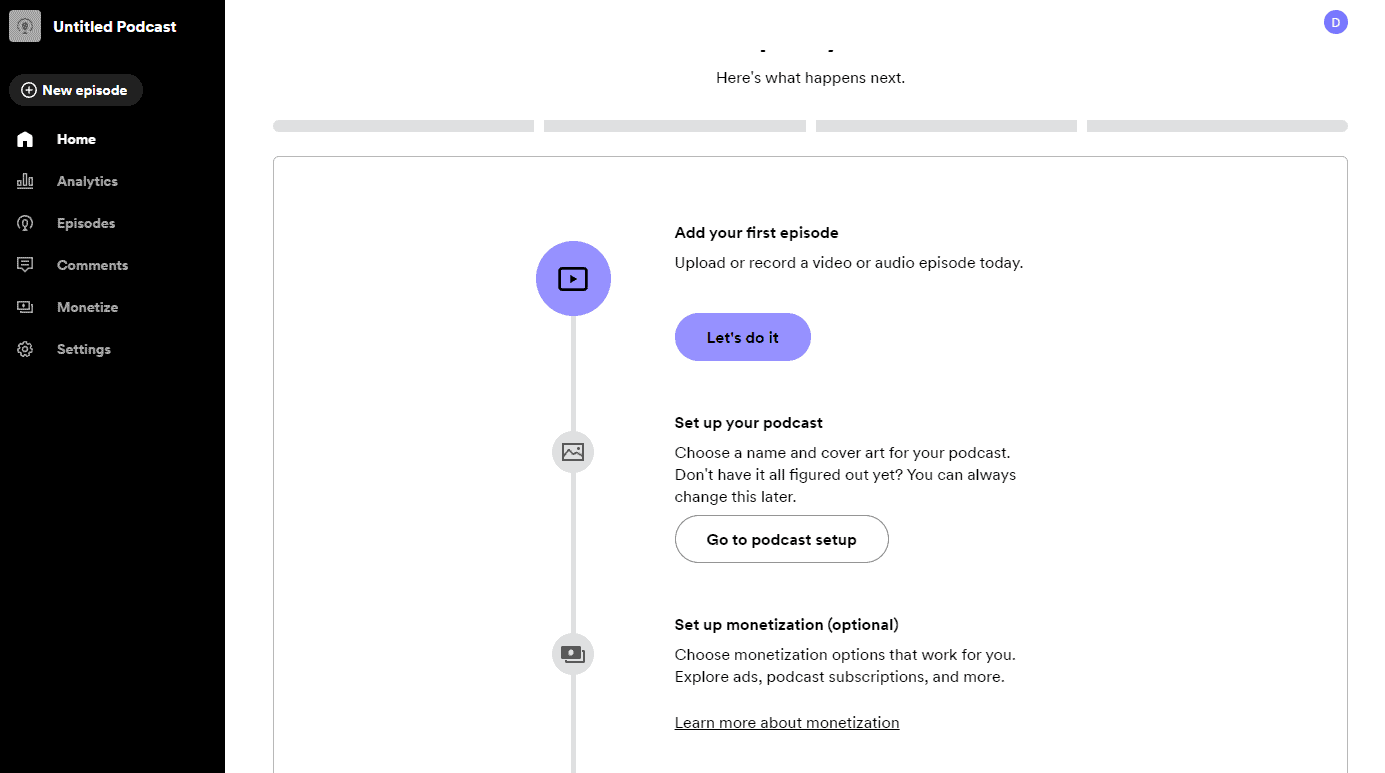
On the next page, select the audio file on your computer that you want to use as the first episode.
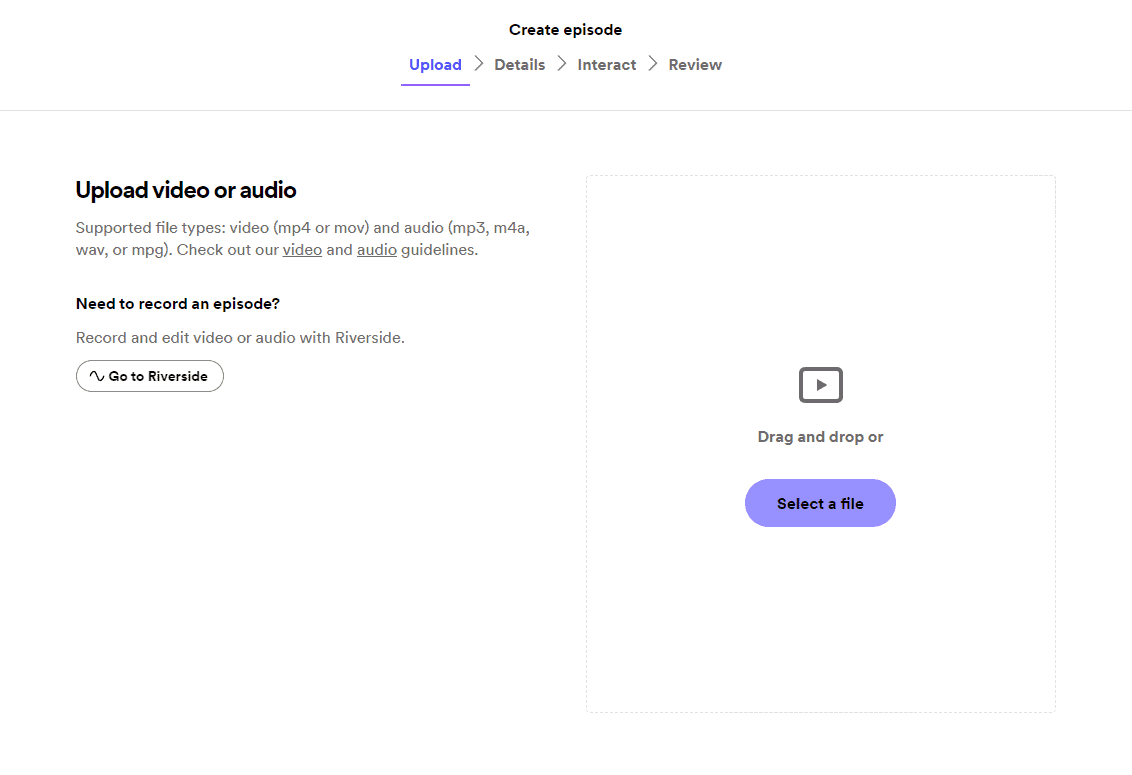
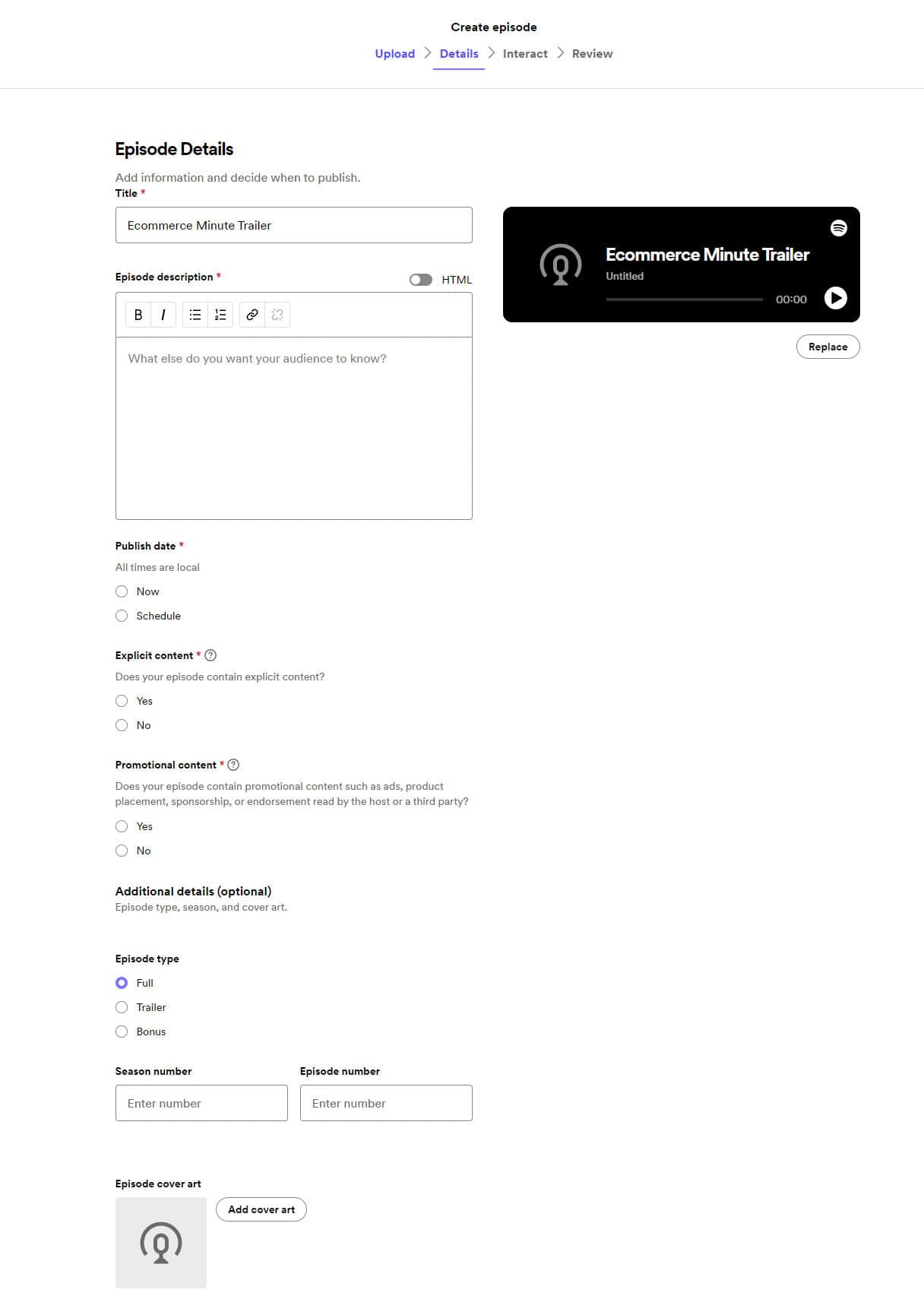
Next, tell Spotify about your episode, including its title, description, publish date, and other details. You can even submit episode artwork that’s different from your cover art. Click “Next” when you’re finished.
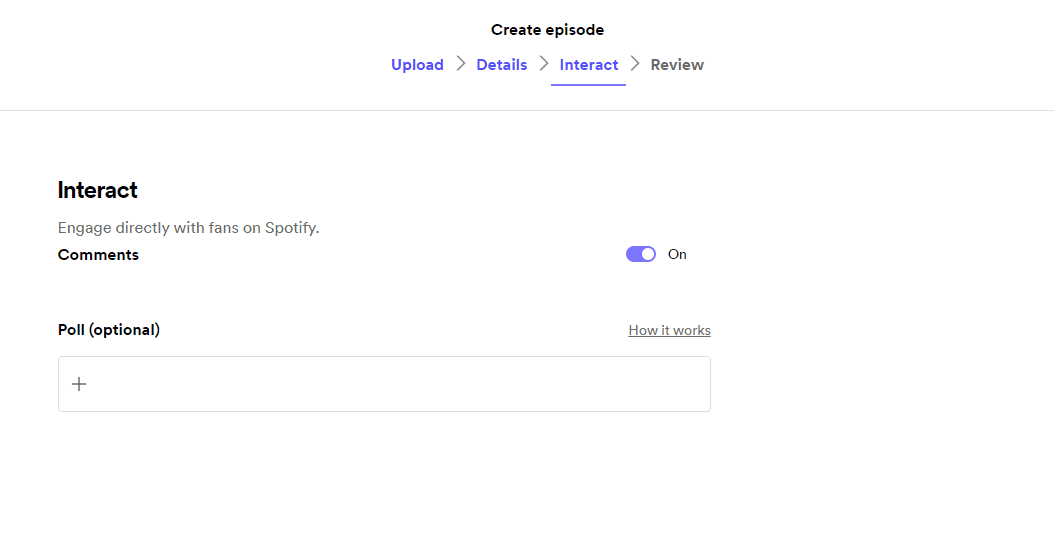
Before you finish, Spotify needs to know if you want to enable comments and whether you’d like to run a poll alongside your episode. Click “Next” when you’re finished.
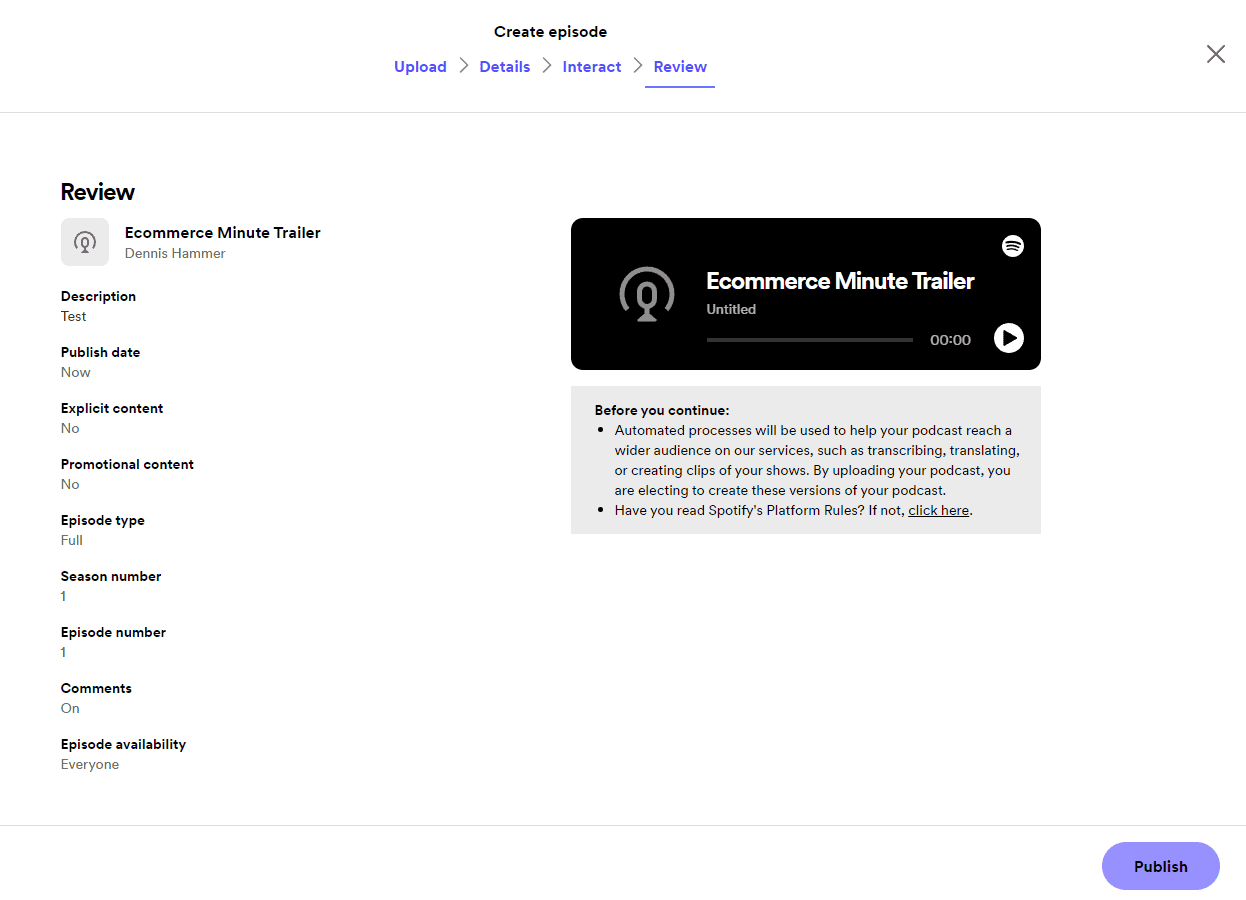
Finally, review to make sure everything looks correct, then click “Publish.”
6. Add Your Show Details
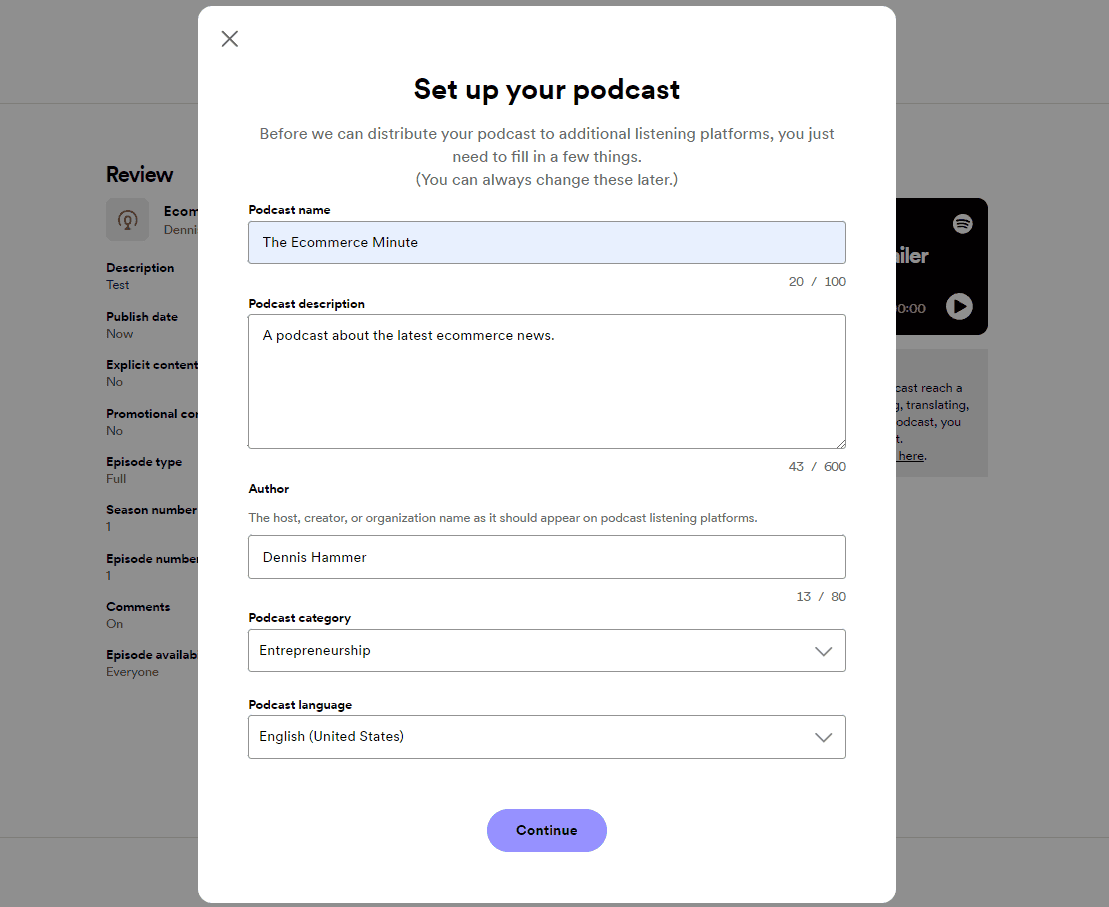
Since this is your first podcast on Spotify, you’ll need to tell the platform a little bit about your show. This form will appear when you try to publish your first episode. Complete each field and click “Continue.”
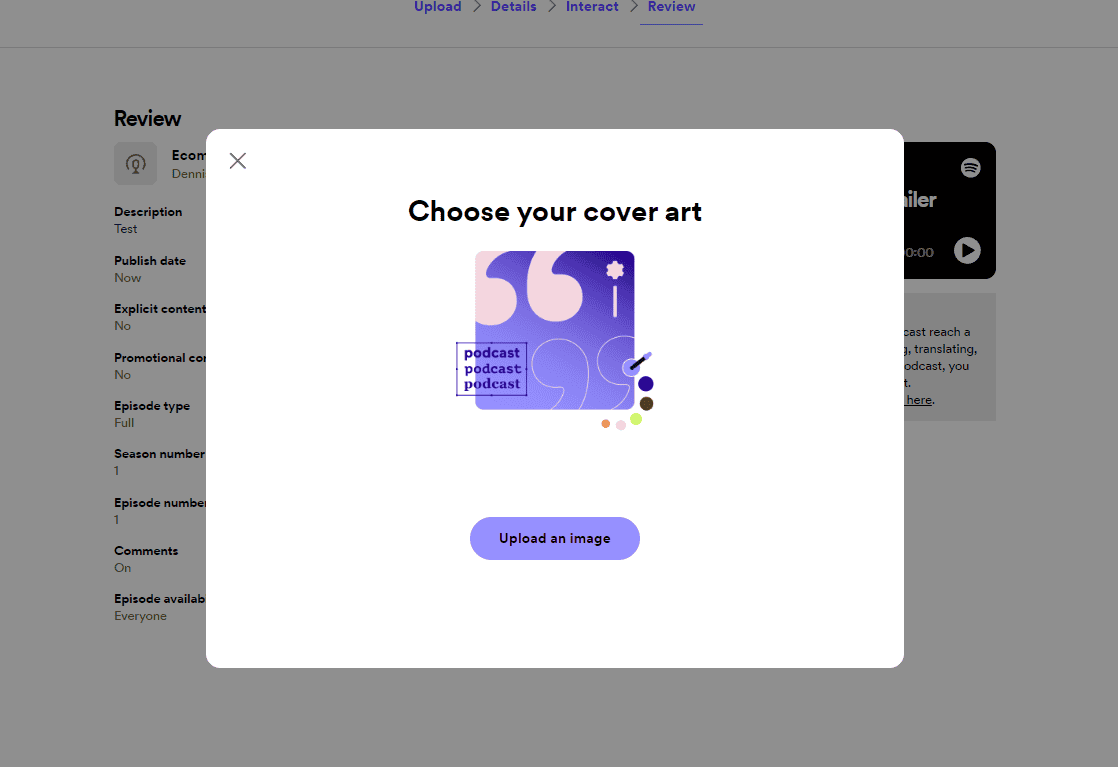
On the next screen, upload your cover art.
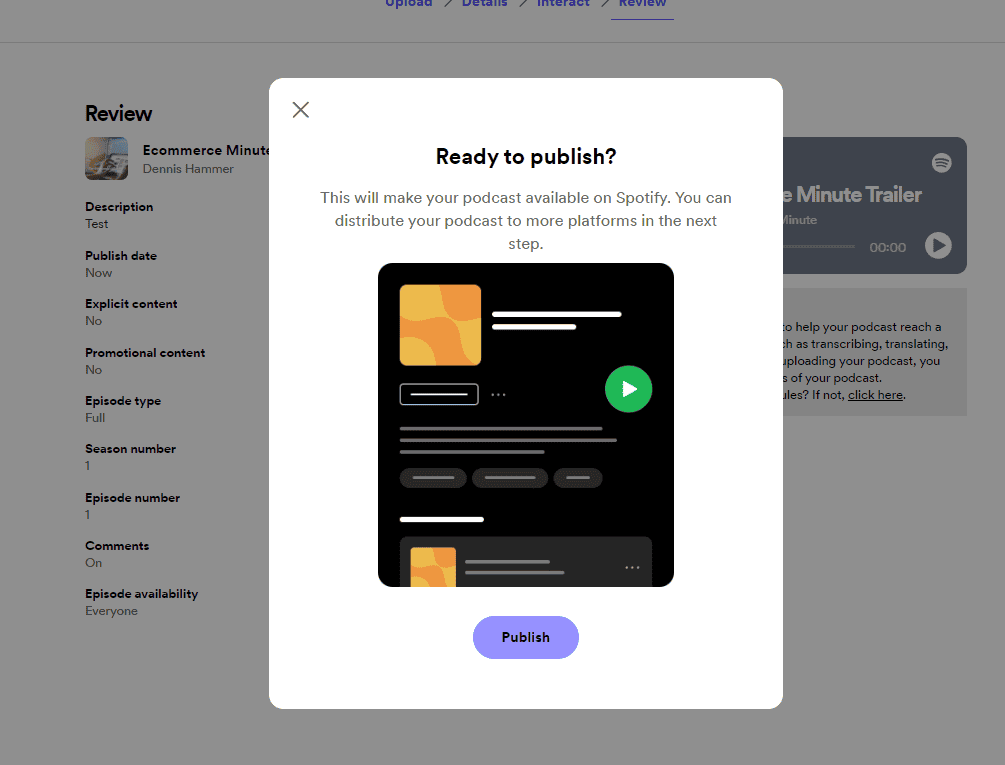
Once you’ve uploaded your cover art, click “Publish” to launch your show to the world. It won’t be available immediately. Spotify needs to go through a short approval process, but the platform will let you know when your episode is available.
7. Explore the Dashboard
Before you leave Spotify, take a few minutes to explore the dashboard.
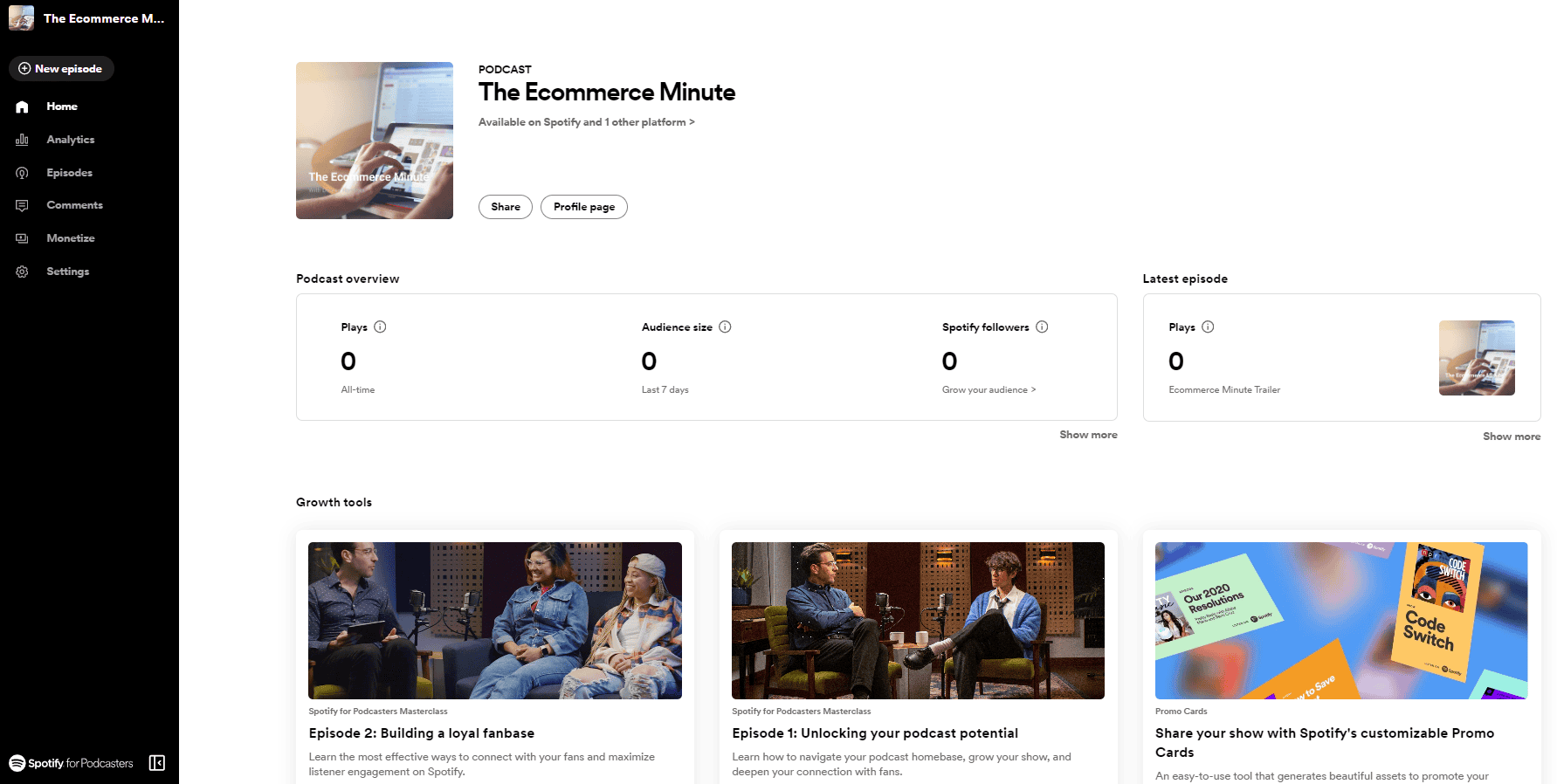
The Analytics page offers detailed stats about your show’s performance. The Episodes page lists each episode and offers some control options. The Comments page is where you can view listener feedback. The Monetize page offers ways to earn money.
The Settings page is the most important right now. It has three tabs.
- About: This is where you edit the details of your show, including your profile page.
- Availability: Here you’ll find links to key pages. You’ll also find your RSS feed URL, which you’ll need to submit your show to other podcast listening apps.
- Team: This is where you manage the people who work on your show.
How to Submit an Existing Podcast to Spotify
If your show is already hosted somewhere else, you do not upload anything to Spotify. You give Spotify your RSS feed and it pulls in your episodes automatically, including every future one.
- Check your feed meets the requirements above. Same specification either way.
- Go to Spotify for Creators and sign in.
- Choose “I already have a podcast.” This is the branch that matters. Picking the other option starts a Spotify-hosted show instead.
- Paste your RSS feed URL. Your host provides this.
- Verify you own the show. Spotify emails a code to the address in your feed, so make sure that address is one you can actually reach.
- Confirm your show details and submit.
Approval usually takes a few days. After that, every new episode appears automatically. You never touch Spotify again.
Doing it from Castos
If Castos hosts your show, there is a direct integration that skips the manual steps. In your dashboard, open Settings for your podcast, go to Distribution, choose the Spotify option, and click submit. Castos handles the feed and verification.
Frequently asked questions
Is it free to put a podcast on Spotify?
Yes. Spotify does not charge to list or host a podcast. If you host elsewhere you pay your host, not Spotify.
How long does Spotify take to approve a podcast?
Usually a few days, sometimes within hours. If it takes longer than about a week, check that your feed meets the specification and that you completed email verification.
Do I need a podcast host to be on Spotify?
No, because Spotify can host your show for free. You need a host if you also want to be on Apple Podcasts and other apps without submitting to each one separately, and if you want to own your feed.
Can I move my podcast off Spotify later?
Yes, but it is awkward. If Spotify hosts your show you have to move the files, set up a feed elsewhere, and redirect listeners. Starting with your own host avoids the problem entirely.
Why is my podcast not showing up on Spotify?
The usual causes are an unverified email address, cover art that is not square, a feed missing a required field, or an episode over the size limit. Work back through the requirements checklist above.
Does Spotify support video podcasts?
Yes, Spotify supports video episodes. How your video reaches Spotify depends on your host, so confirm the route before committing if video matters to your show.
Now You Know How to Start a Podcast on Spotify
At this point, your show is available on Spotify to all of its listeners. Be sure to submit your RSS feed to the other listening platforms to give yourself the best chance to grow your listener base. If you are launching from scratch, our step-by-step podcast launch checklist covers every step that comes before this one.
If Spotify and its limitations aren’t right for you and your show, consider using Castos to host your podcast. We offer unlimited podcasts, episodes, and downloads, on all plans, automatic distribution to the major listening apps, free podcast transcription, and several money-making tools. Get started for free
Launch Your Podcast In Minutes
Castos makes launching simple with one-click setup, automatic distribution to all platforms, and professional hosting. No technical skills required.
Start your 14-day free trial